

.png)

Lead scoring is an essential tool that helps you prioritize your leads based on their potential to convert.
By setting up lead scoring in HubSpot, you can align your marketing efforts with your sales and marketing teams. This ensures that you focus on the most promising prospects. This process not only improves efficiency but also enhances communication between teams, allowing everyone to work toward the same goals.
Creating a tailored lead scoring system in HubSpot allows you to evaluate leads based on various criteria, including engagement and demographic information.
As a result, your marketing and sales teams can share valuable insights. This ensures that high-quality leads receive immediate attention and nurturing, leading to more effective follow-up strategies and ultimately driving increased sales.
As you embark on setting up lead scoring in HubSpot, you'll discover how easy it is to track and adjust your scoring criteria.
This flexibility gives you and your team the ability to refine your approach continually, maximizing your efforts and optimizing lead conversion rates.
Step-by-Step Tutorial on How to Set Up Lead Scoring in HubSpot
1. Begin by accessing the settings area.
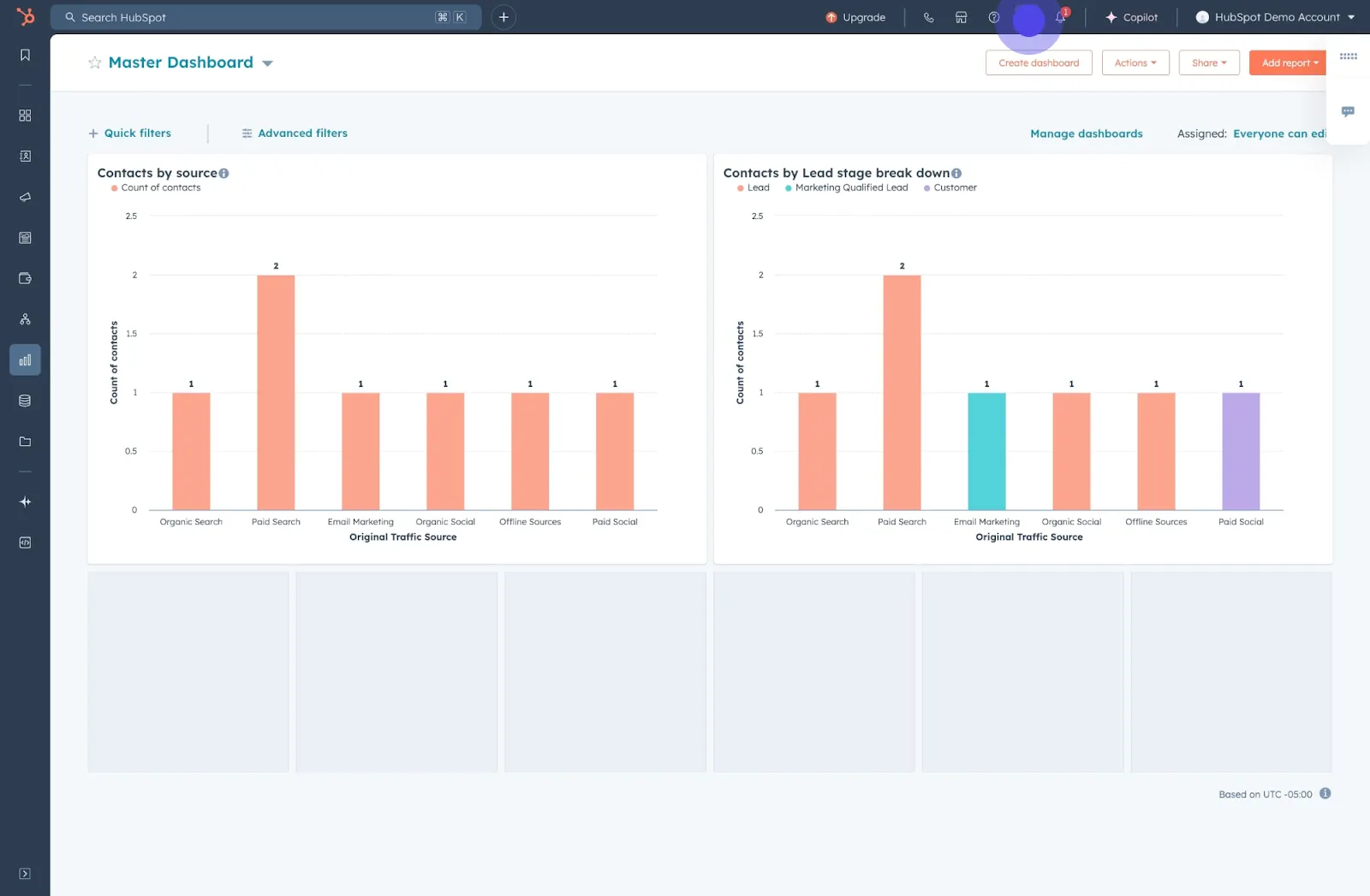
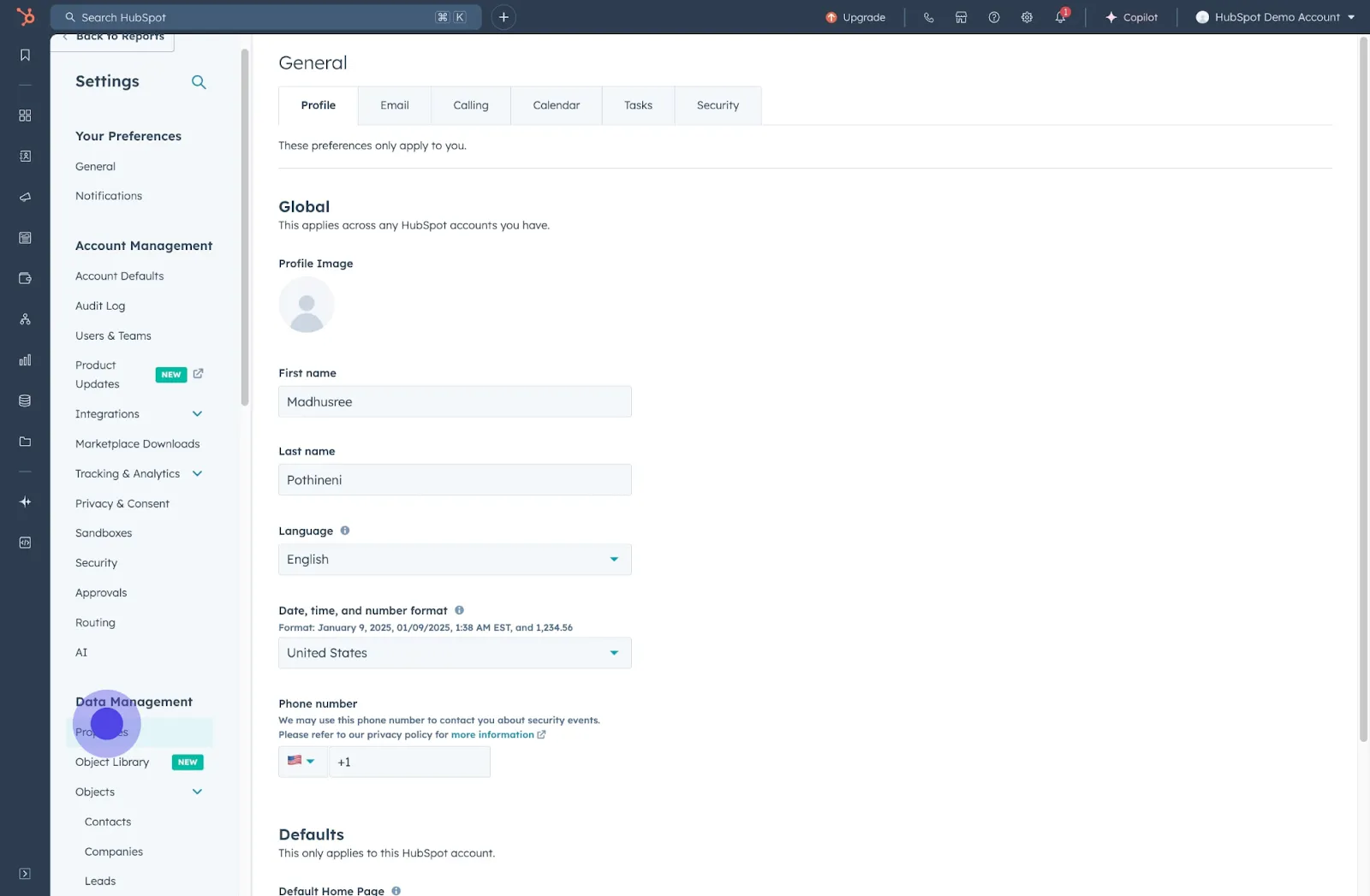
2. Now locate and select 'Properties'.
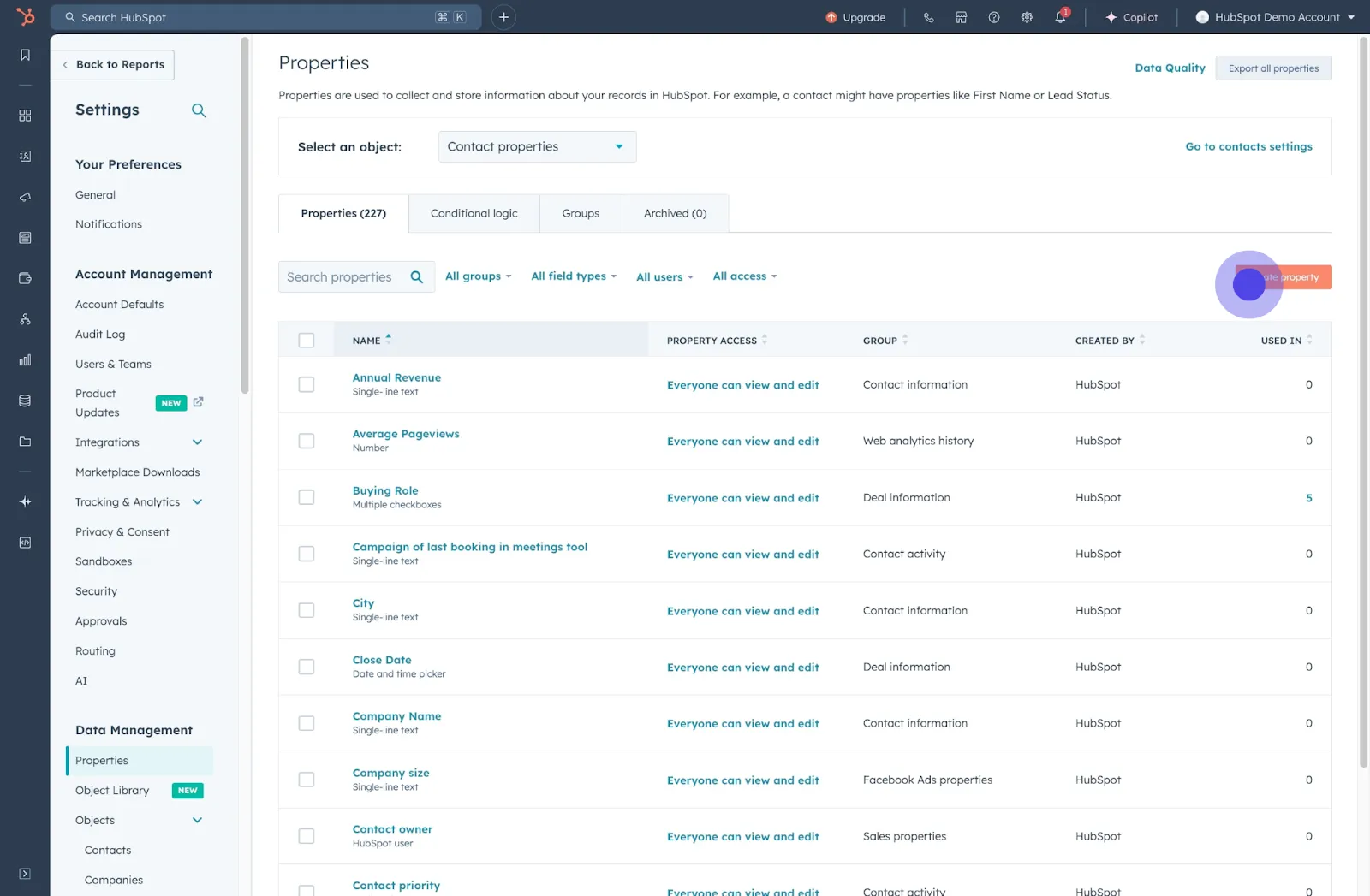
3. Press 'Create property' to continue.
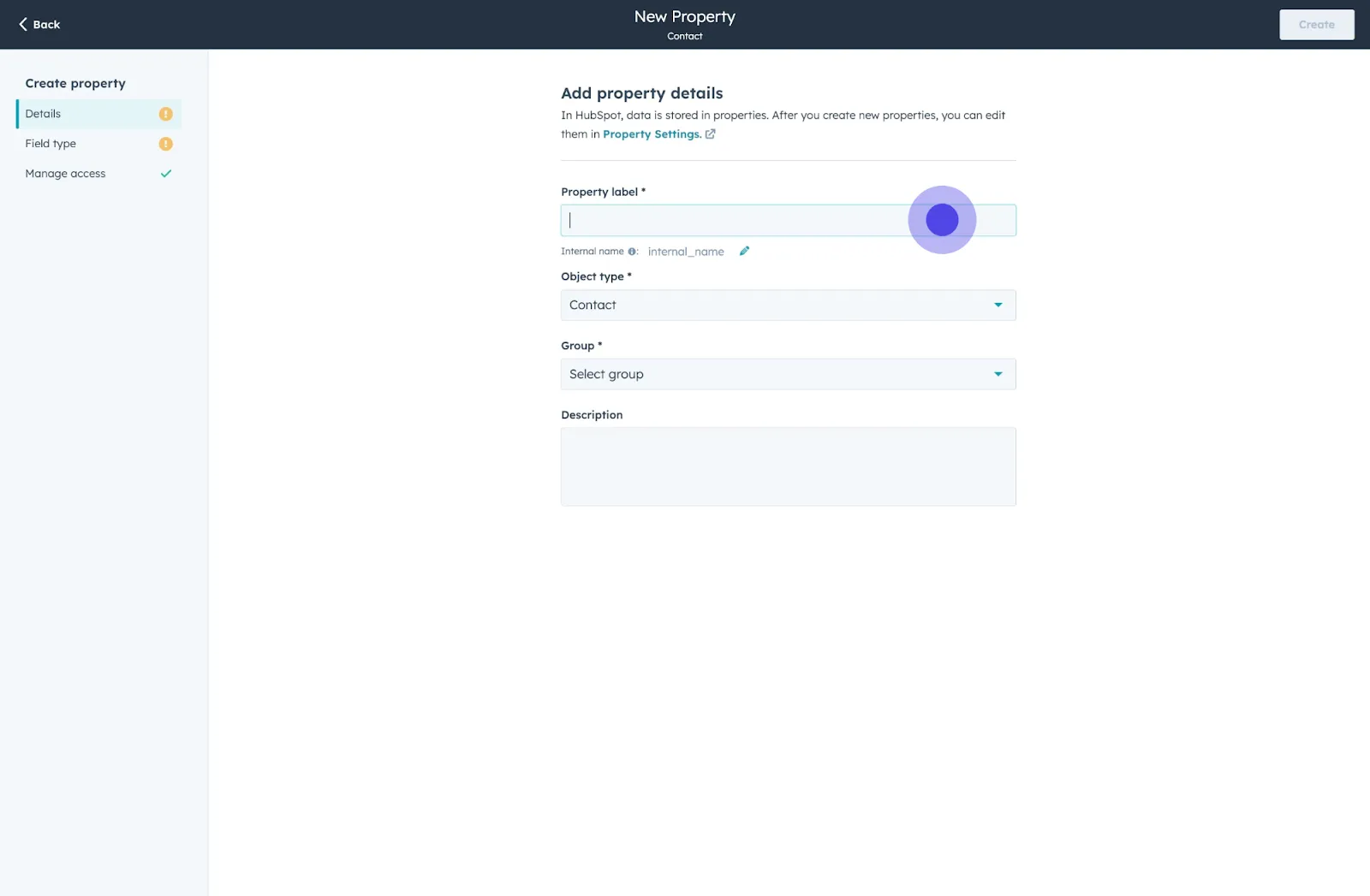
4. Type your desired name for the property.
5. Advance to 'Field type' section next.
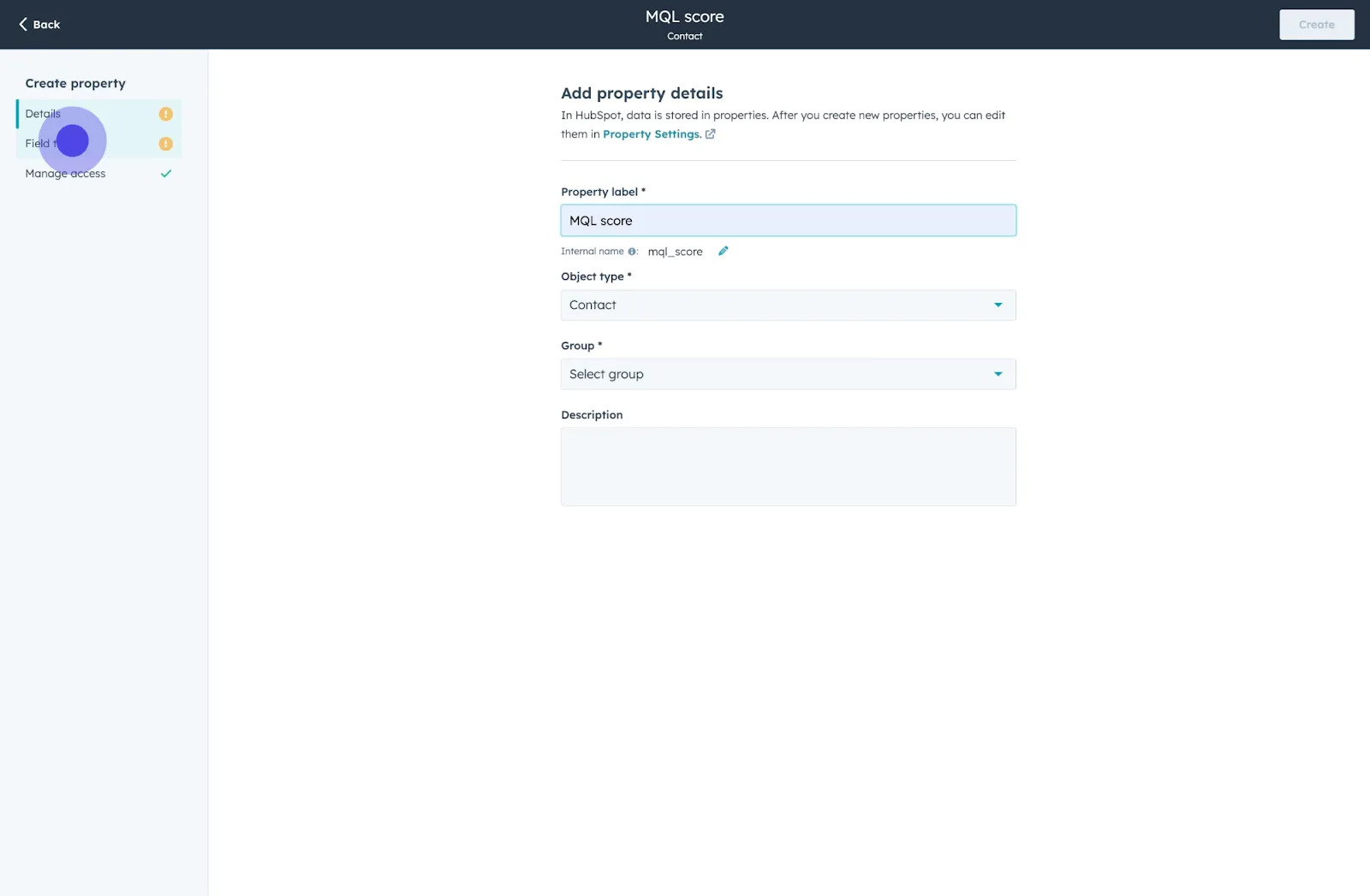
6. Opt to define the property's field type.
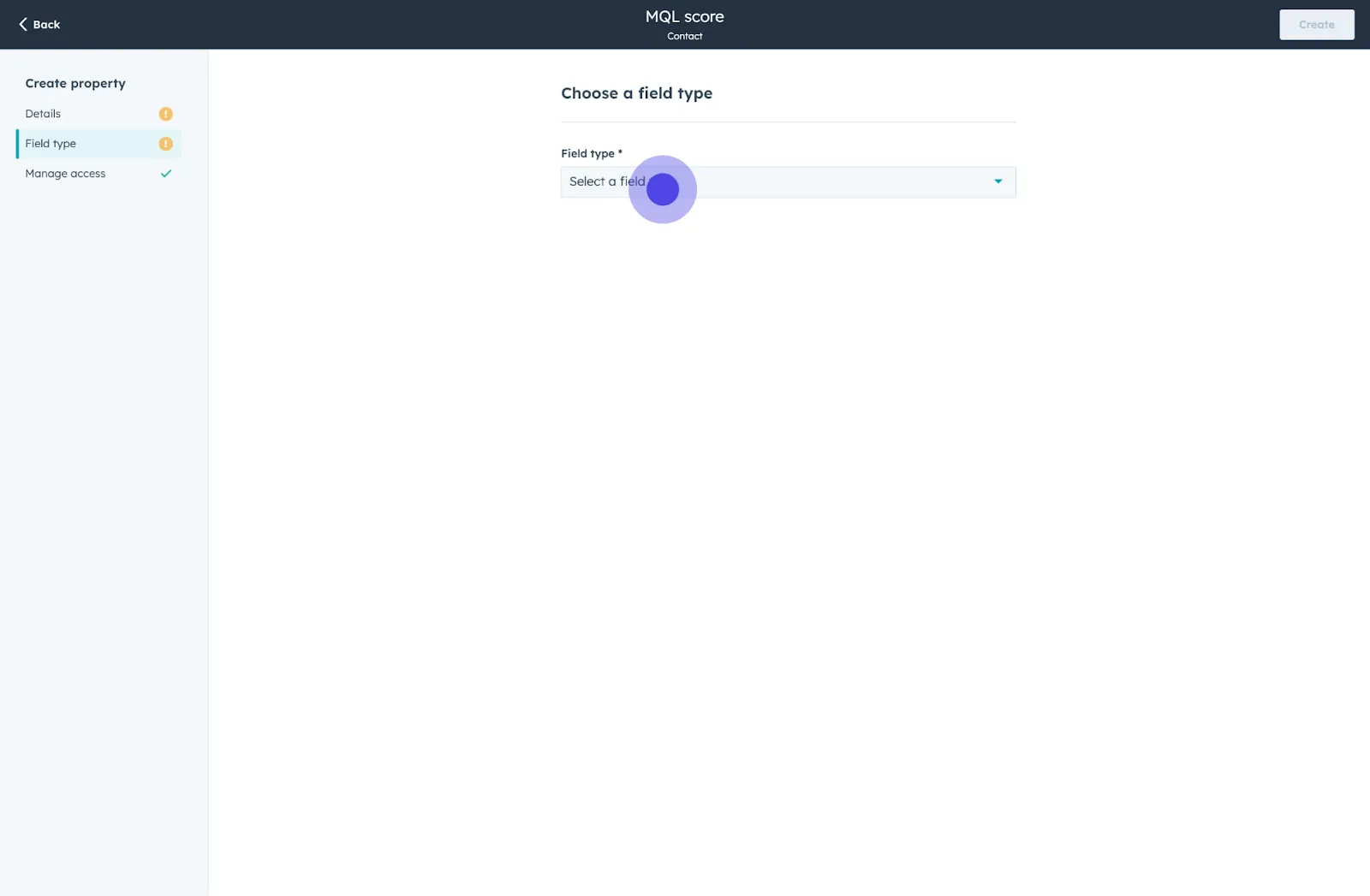
7. Choose 'Score' from the options provided.
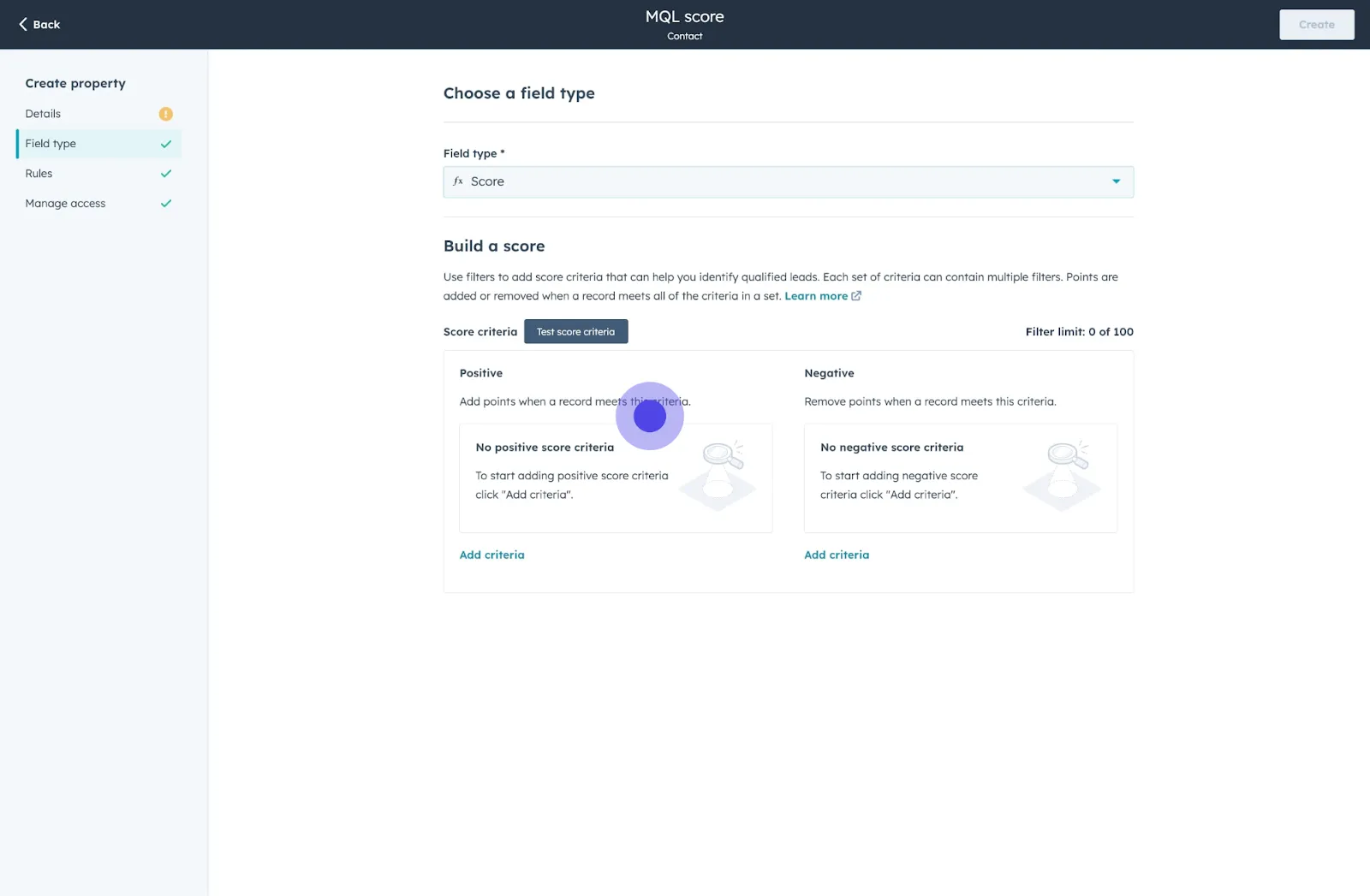
8. Add criteria for scoring by clicking next.
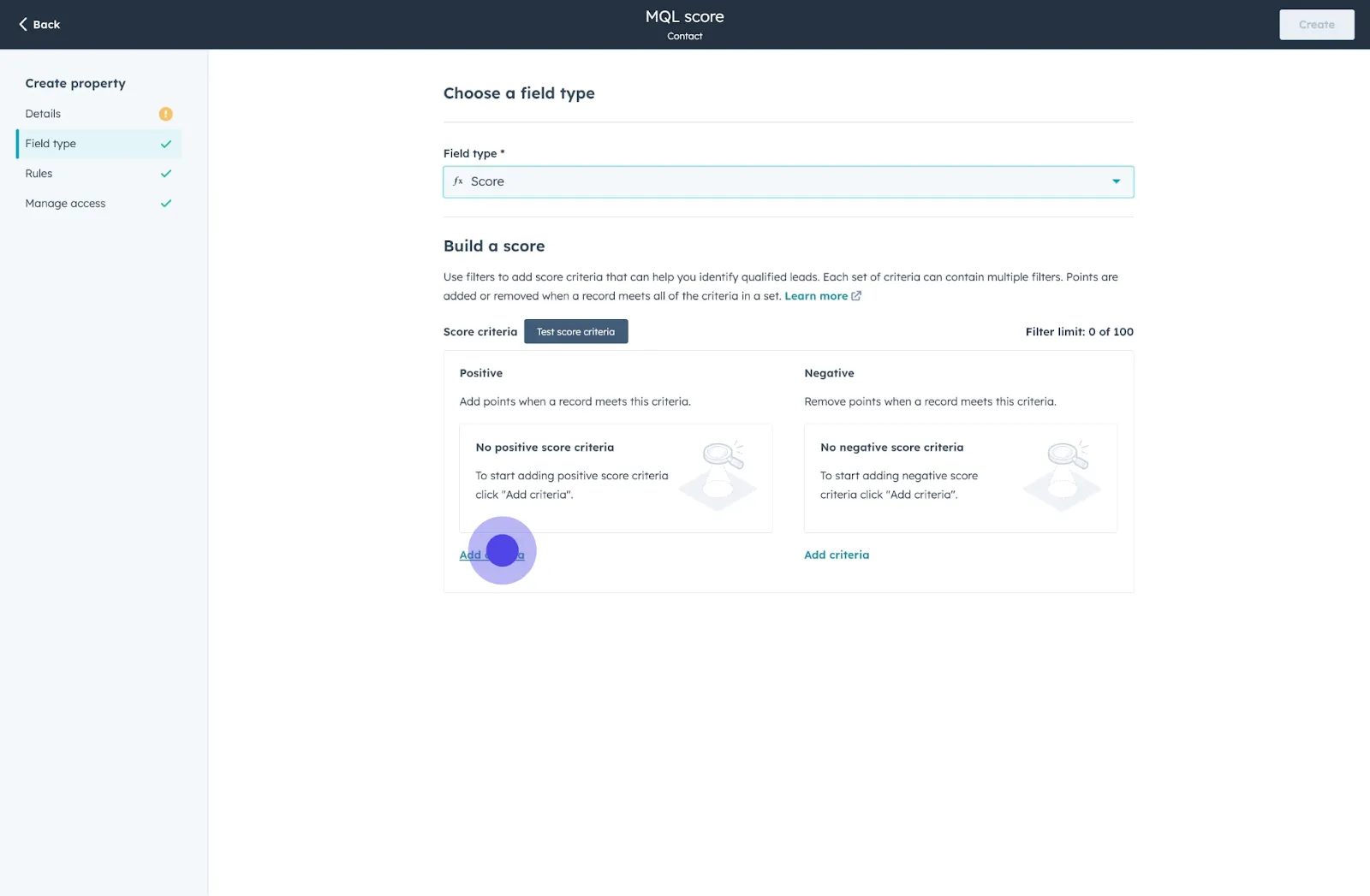
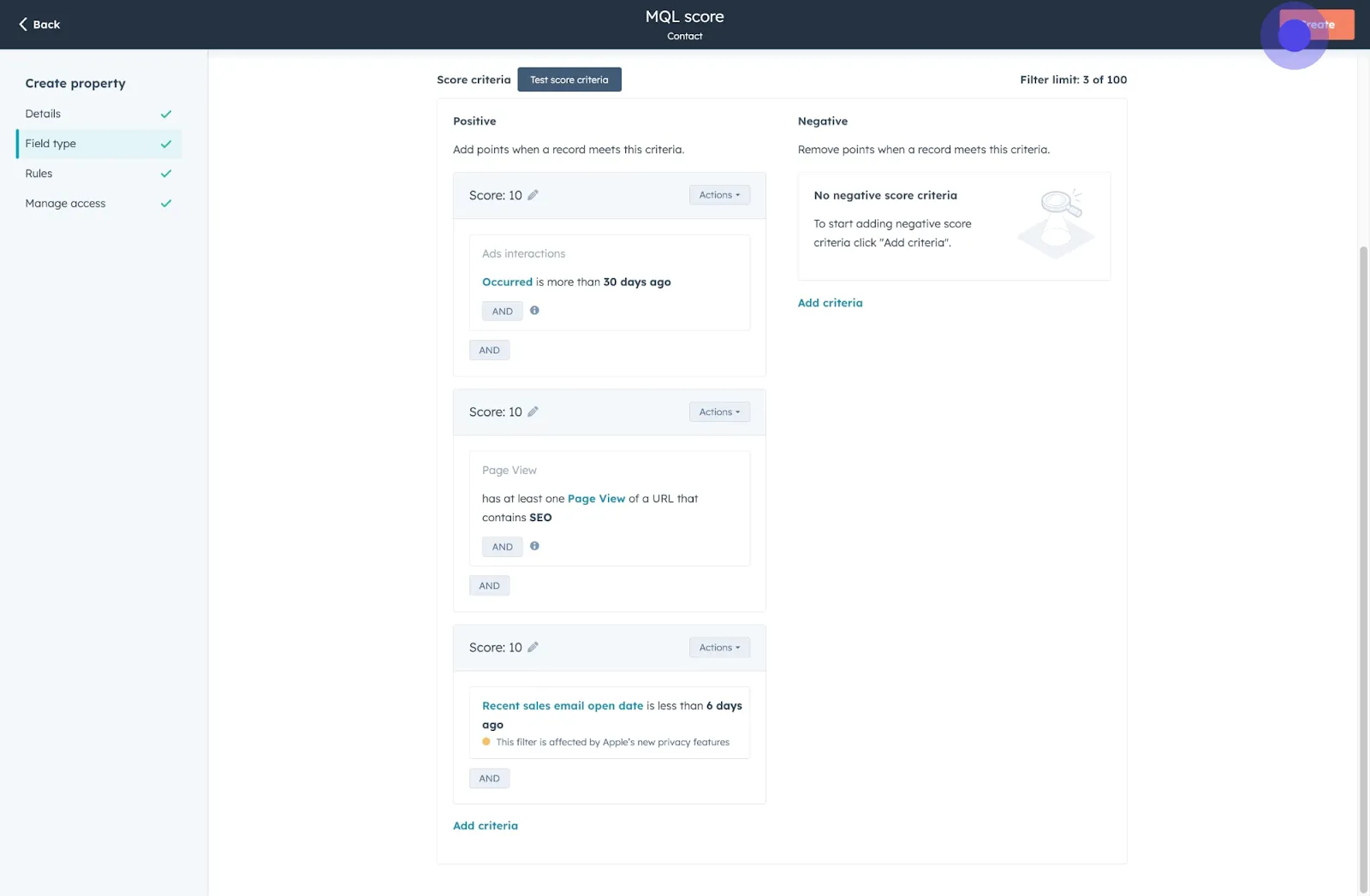
9. Specify criteria related to 'Ads interactions'.
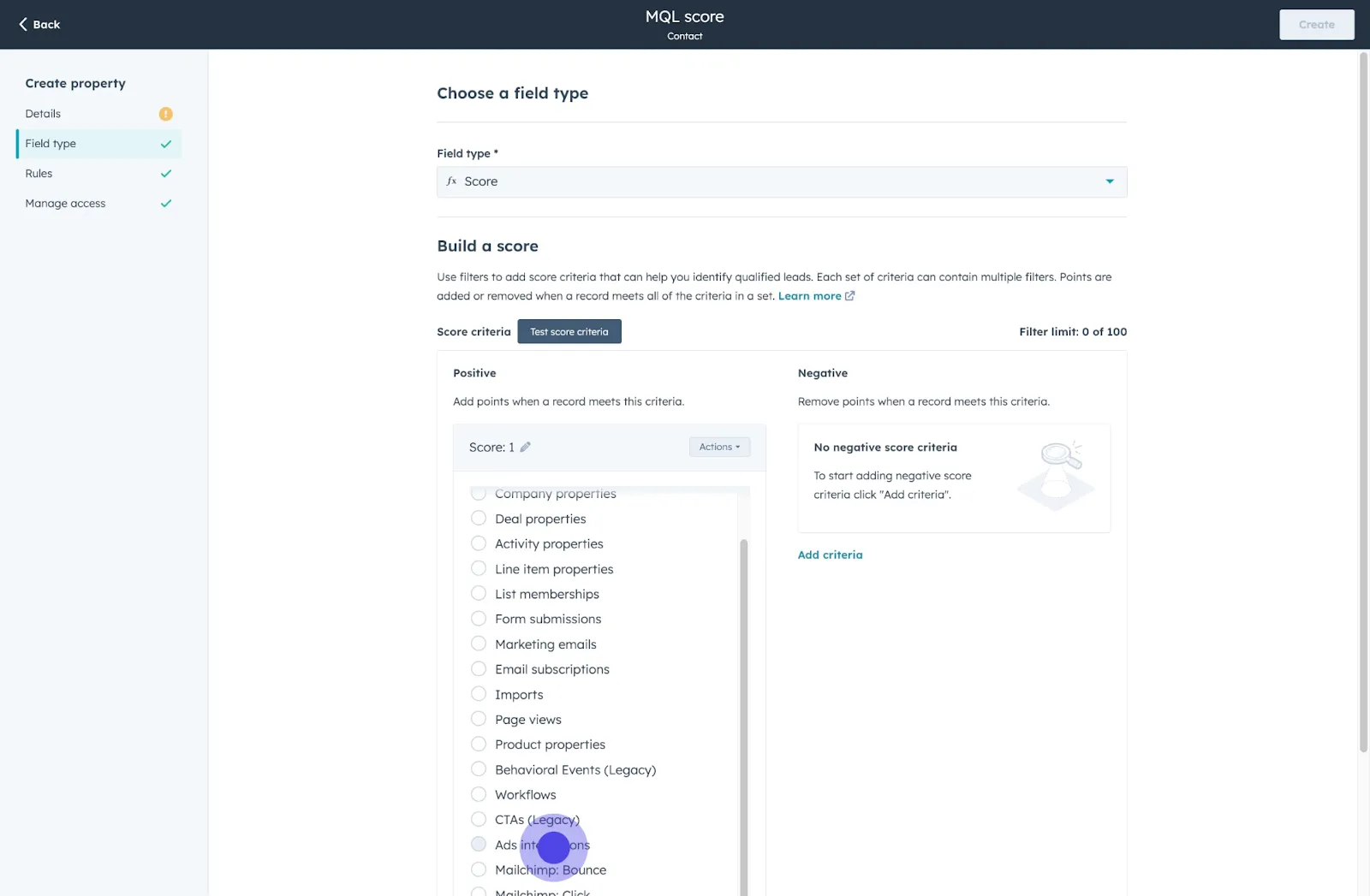
10. Verify the occurrence specifics after that.
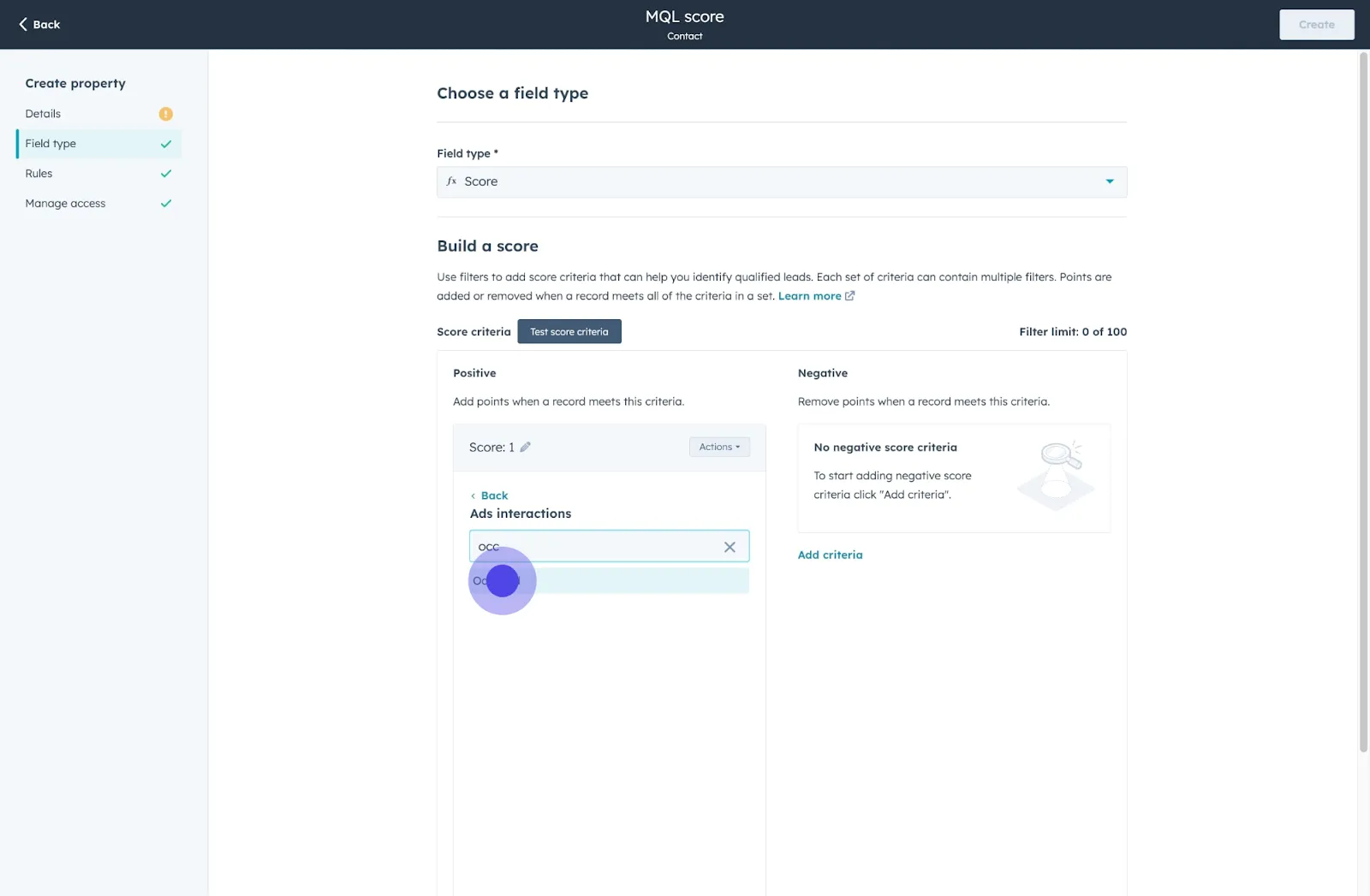
11. Subsequently, provide the relevant date.
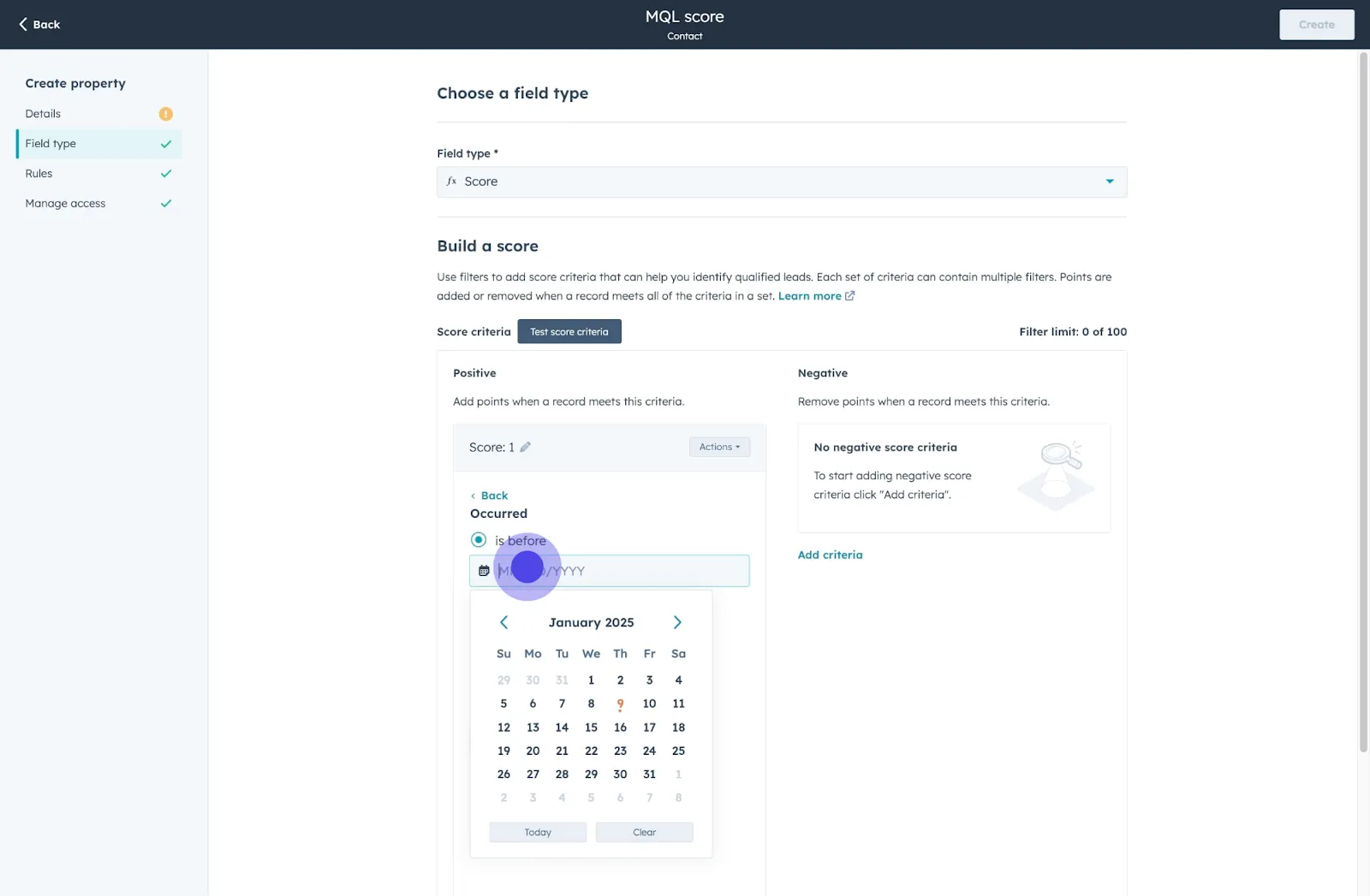
12. Set the criteria using available controls.

13. Choose criteria that better fits by clicking 'is more than'.
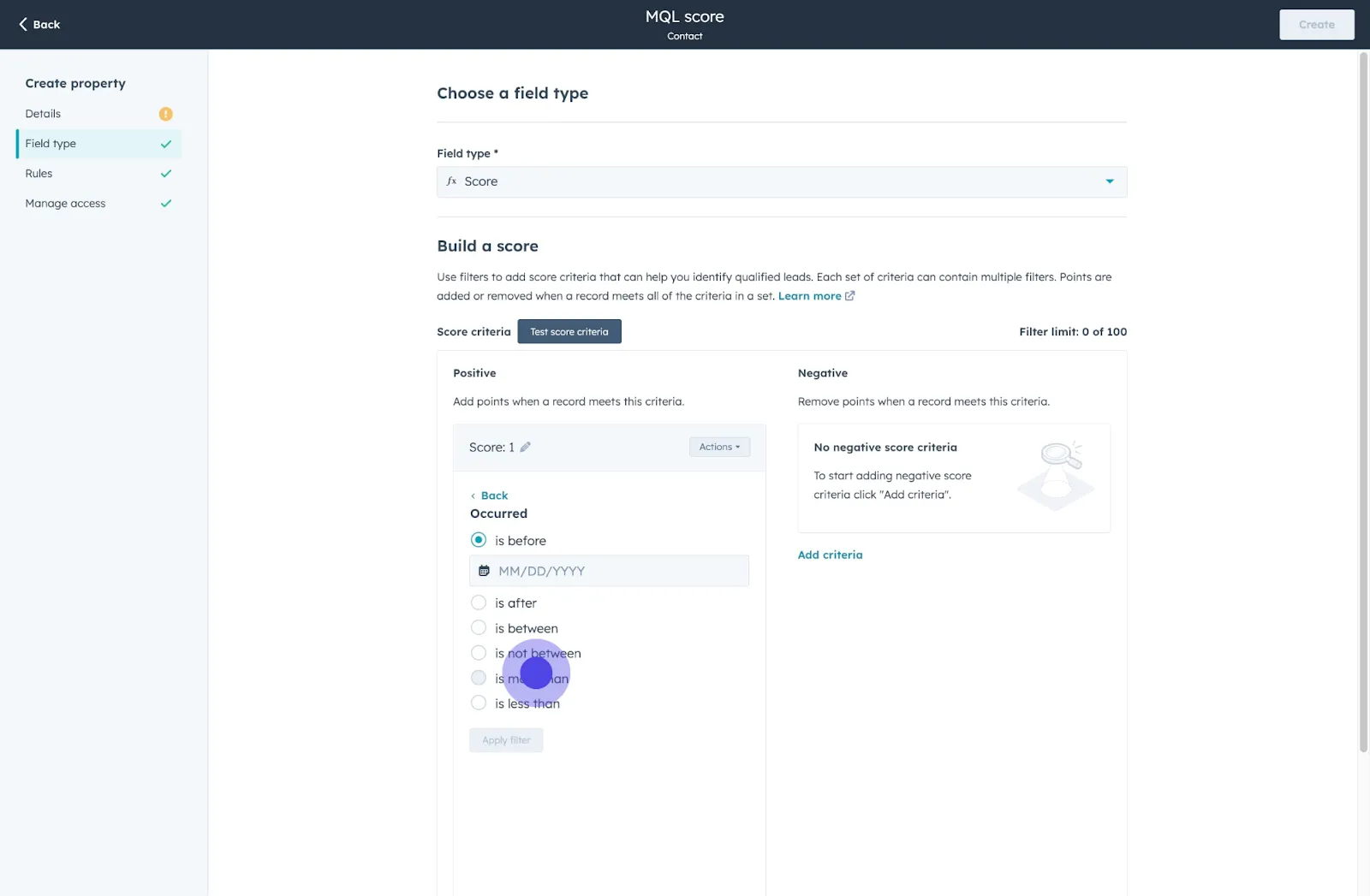
14. Input a threshold value for the criteria.
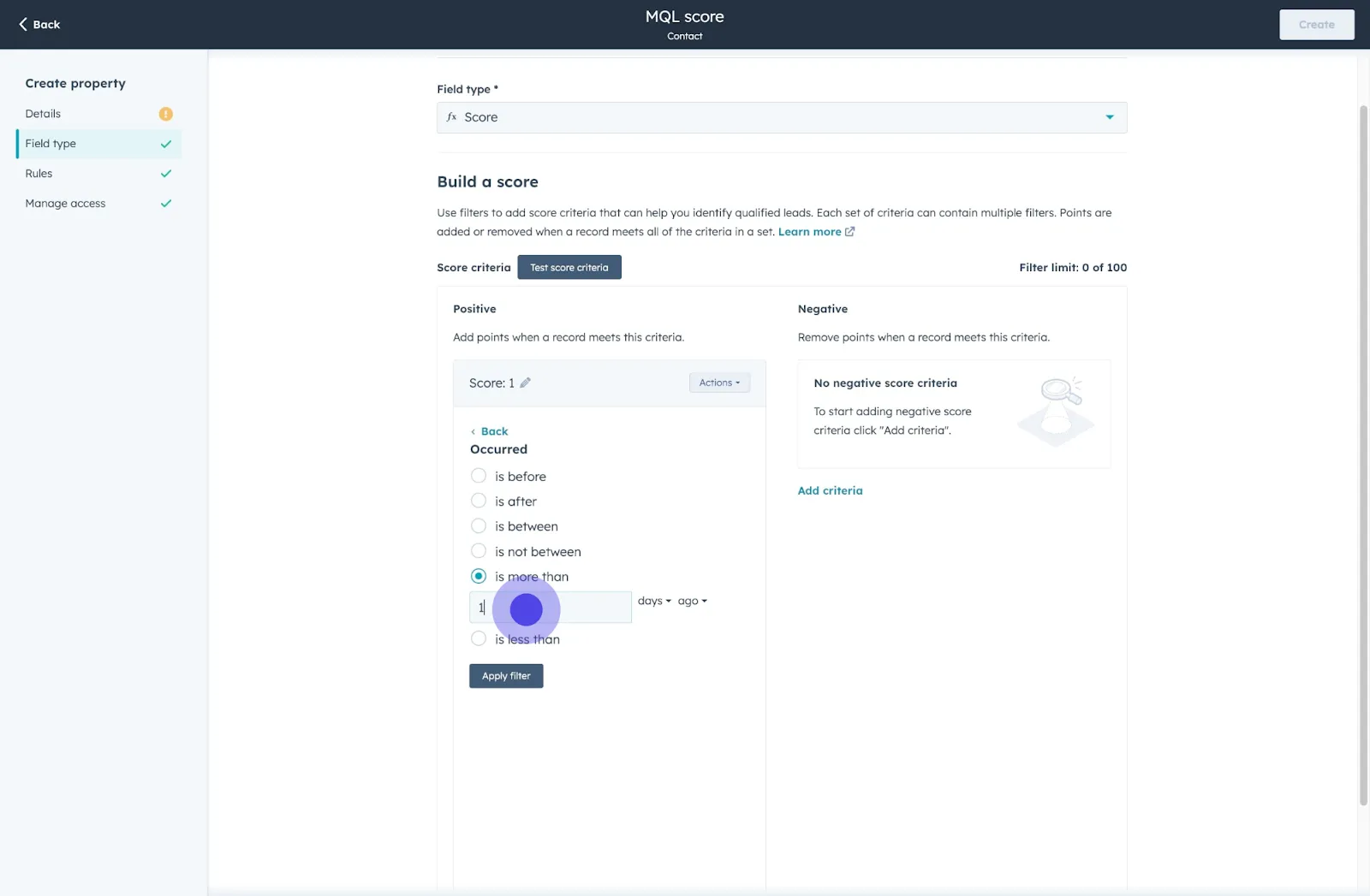
15. Apply the filter and proceed.
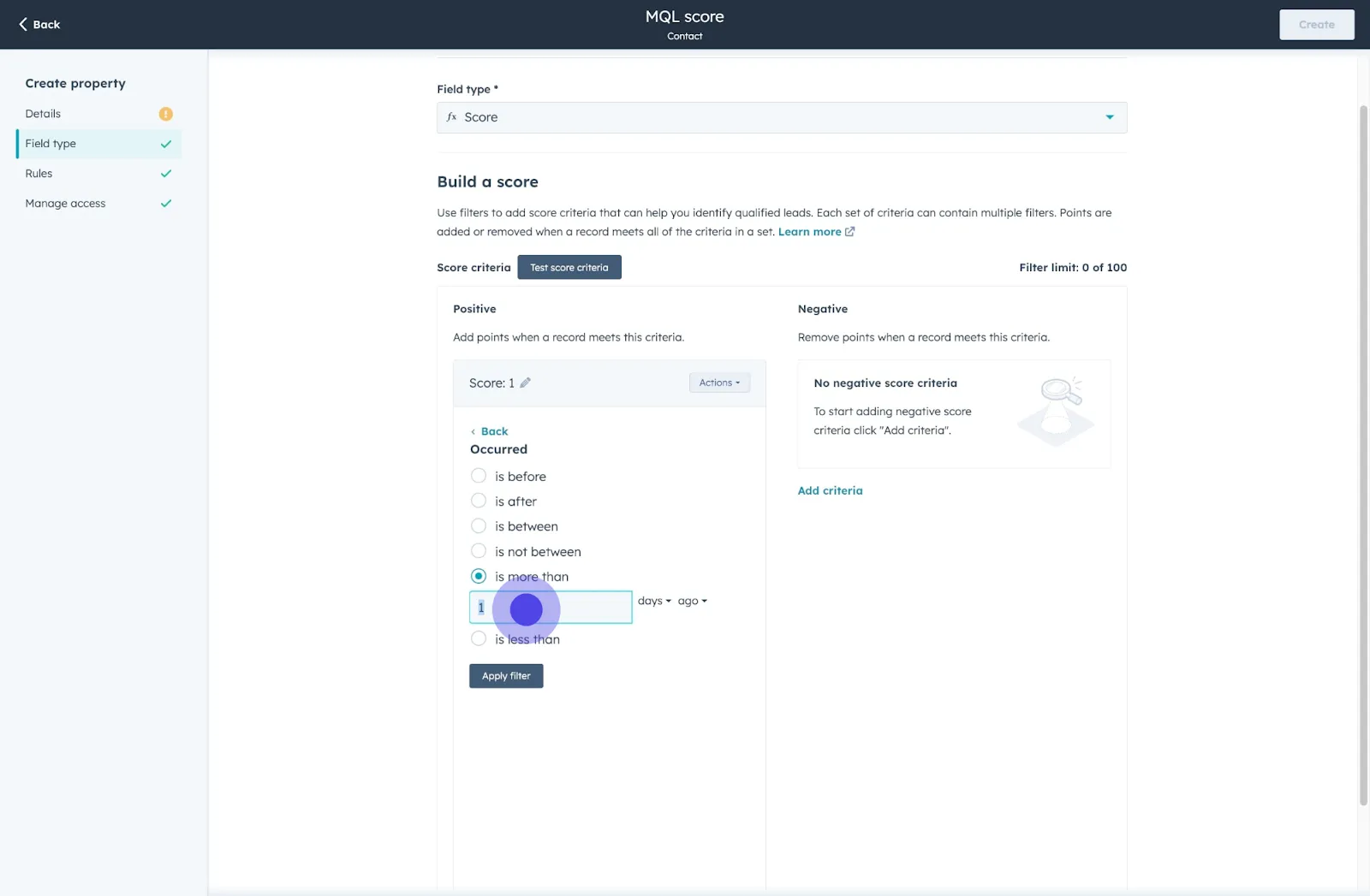
16. Make any necessary edits by clicking next.
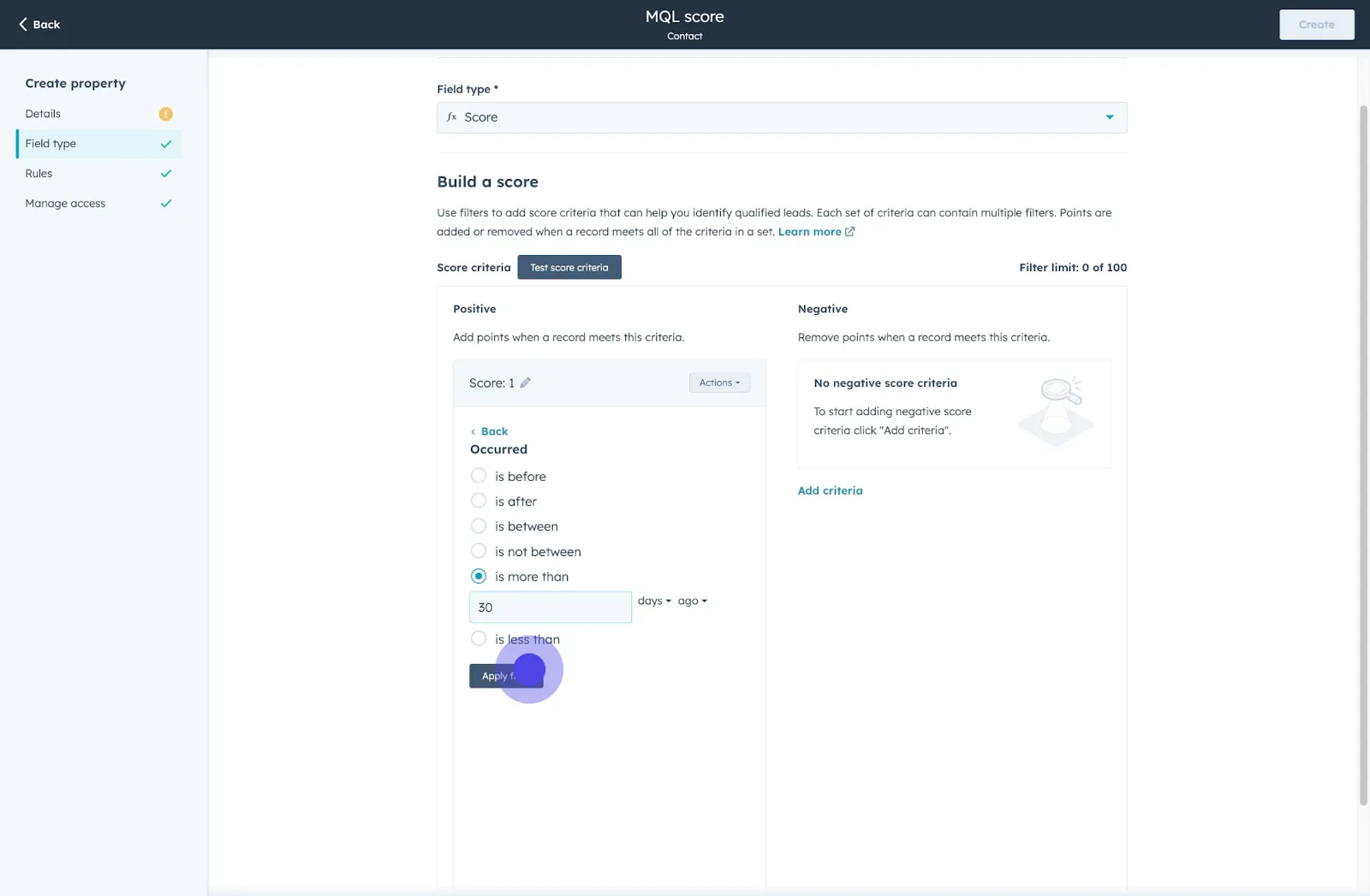
17. Review your scoring settings now.
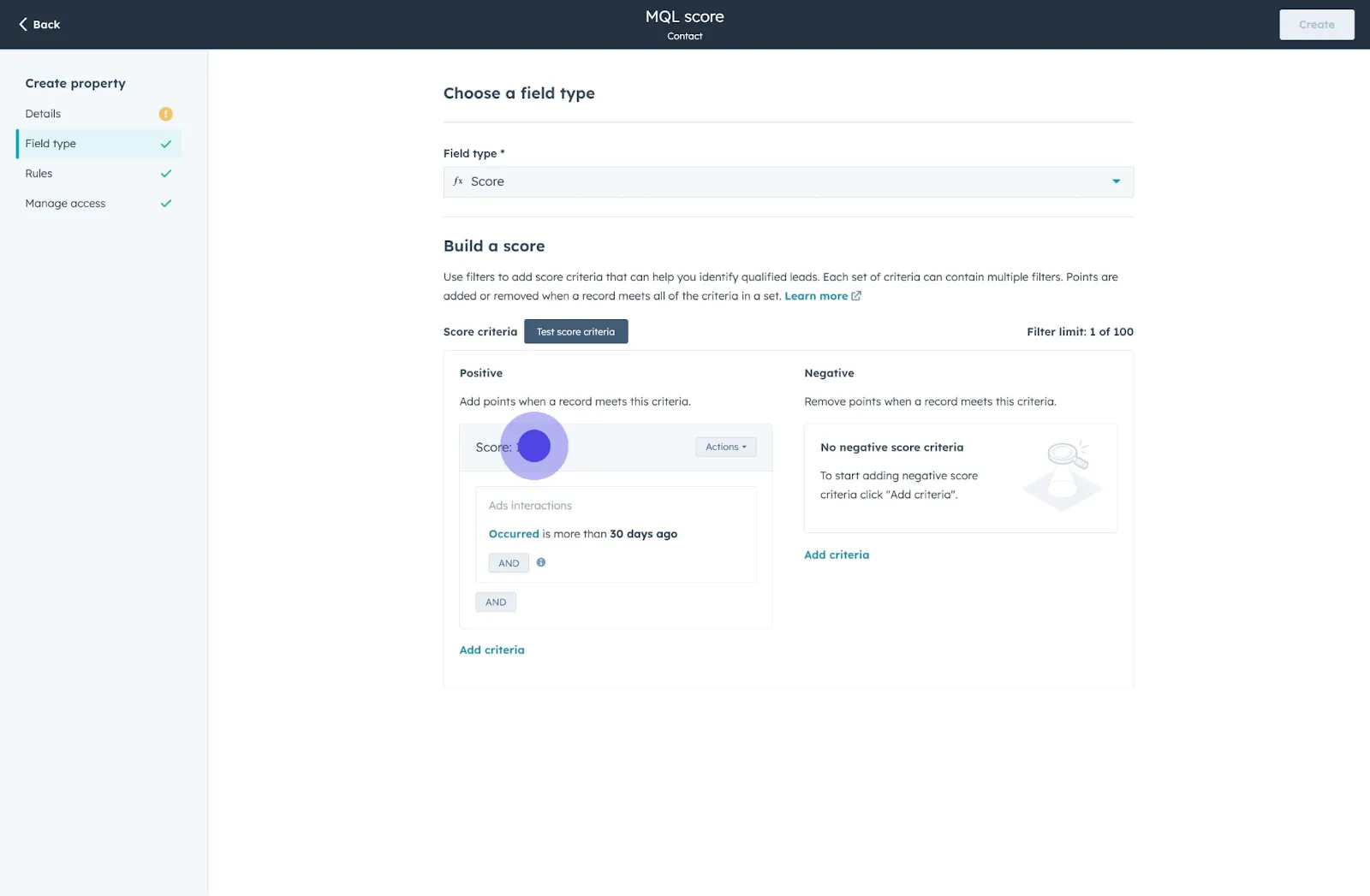
18. Wrap this configuration with a click on 'Set'.

19. Proceed to enhance by adding more criteria.
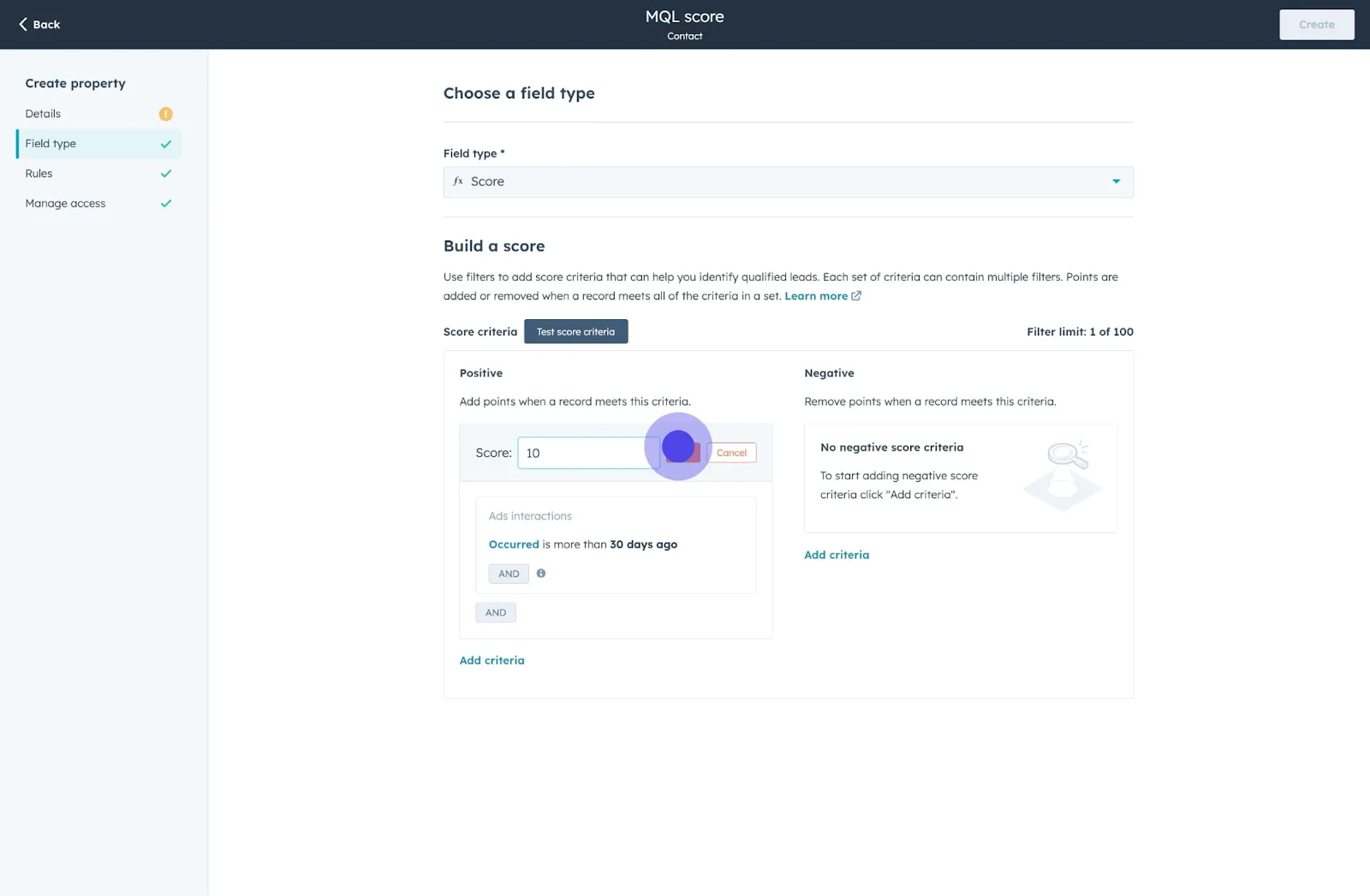
20. Opt for 'Page views' to include as a condition.
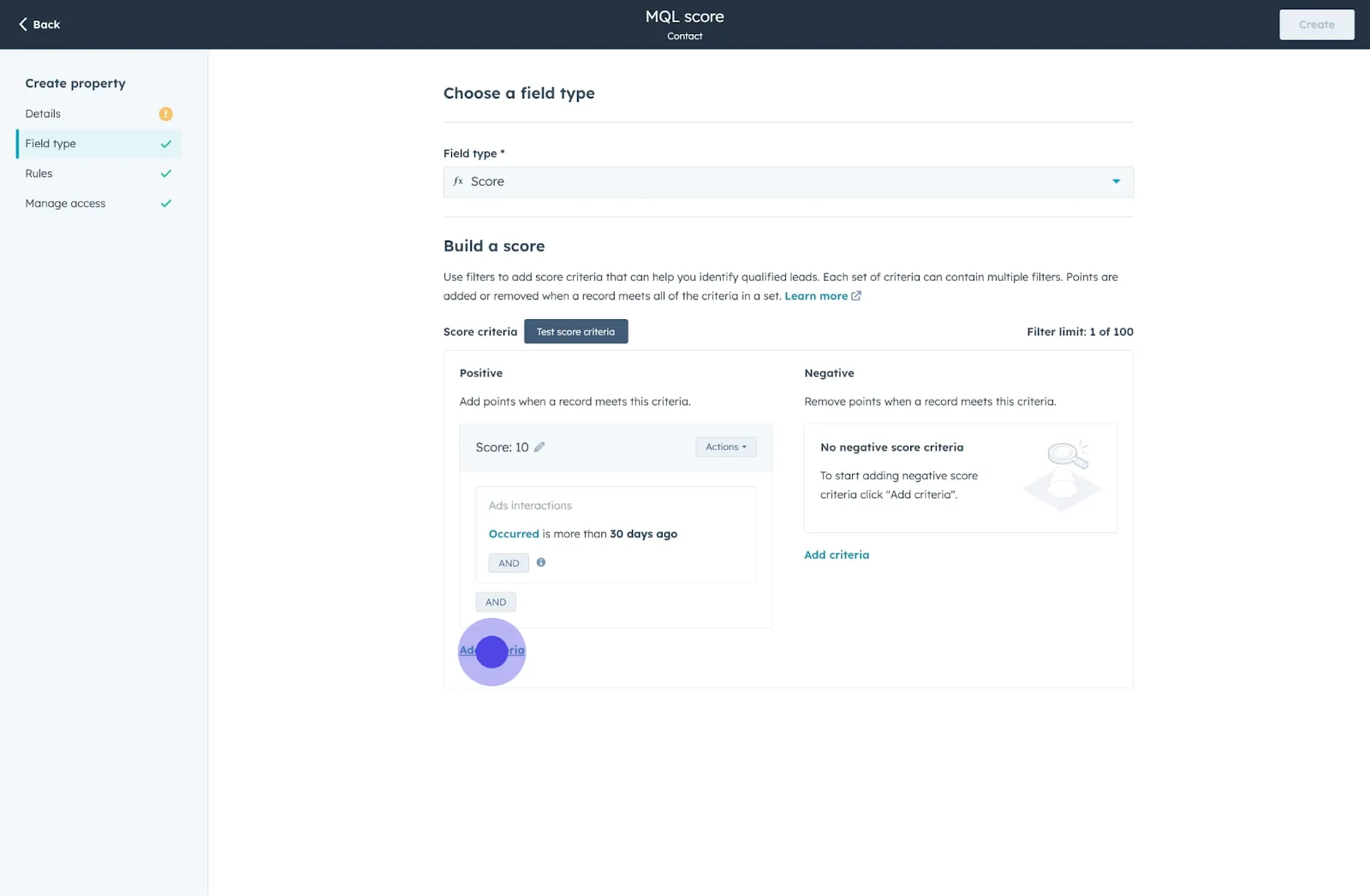
21. Choose 'Contact has viewed at least one URL containing'.
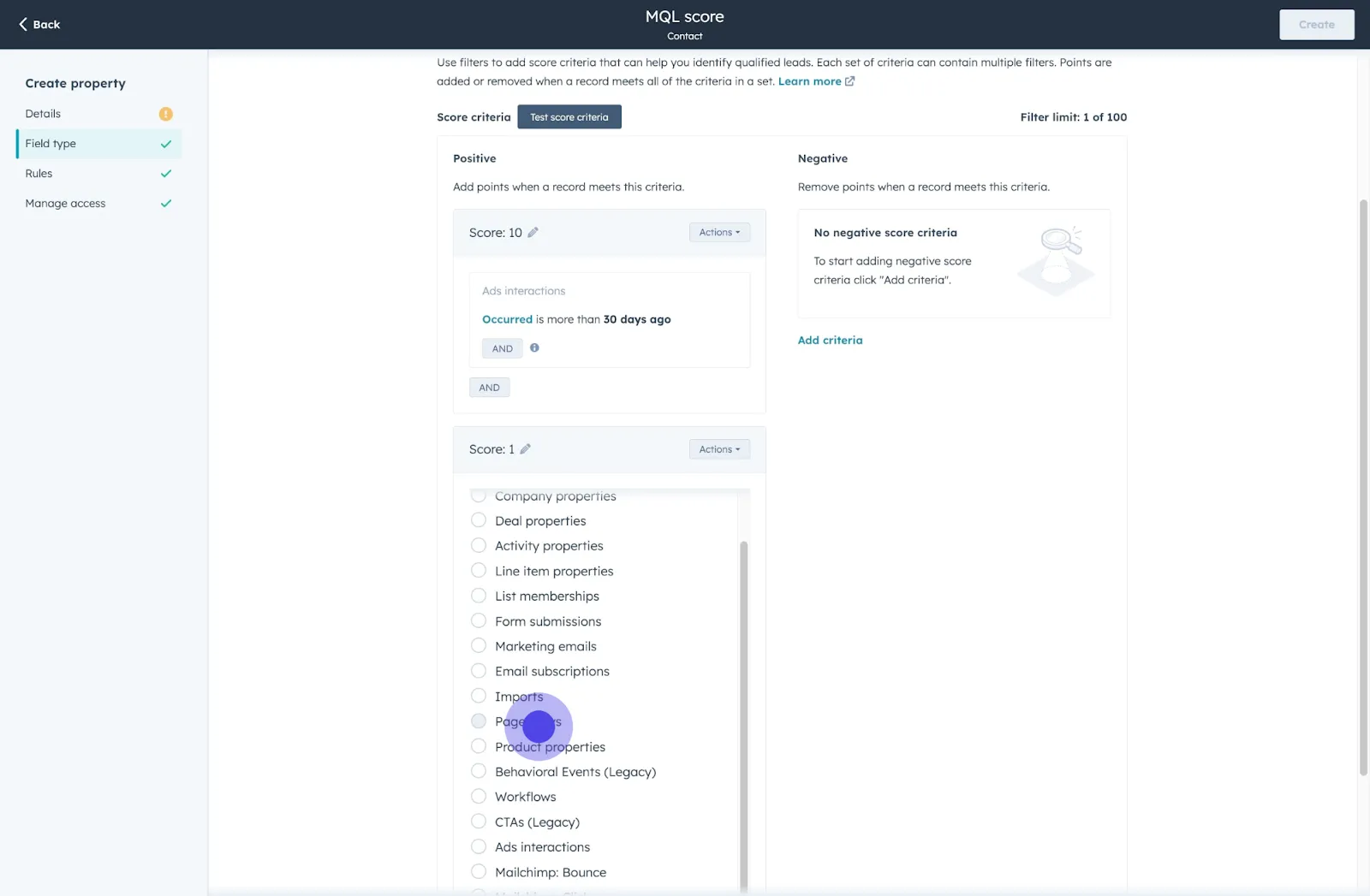
22. Enter the specific URL or keyword next.
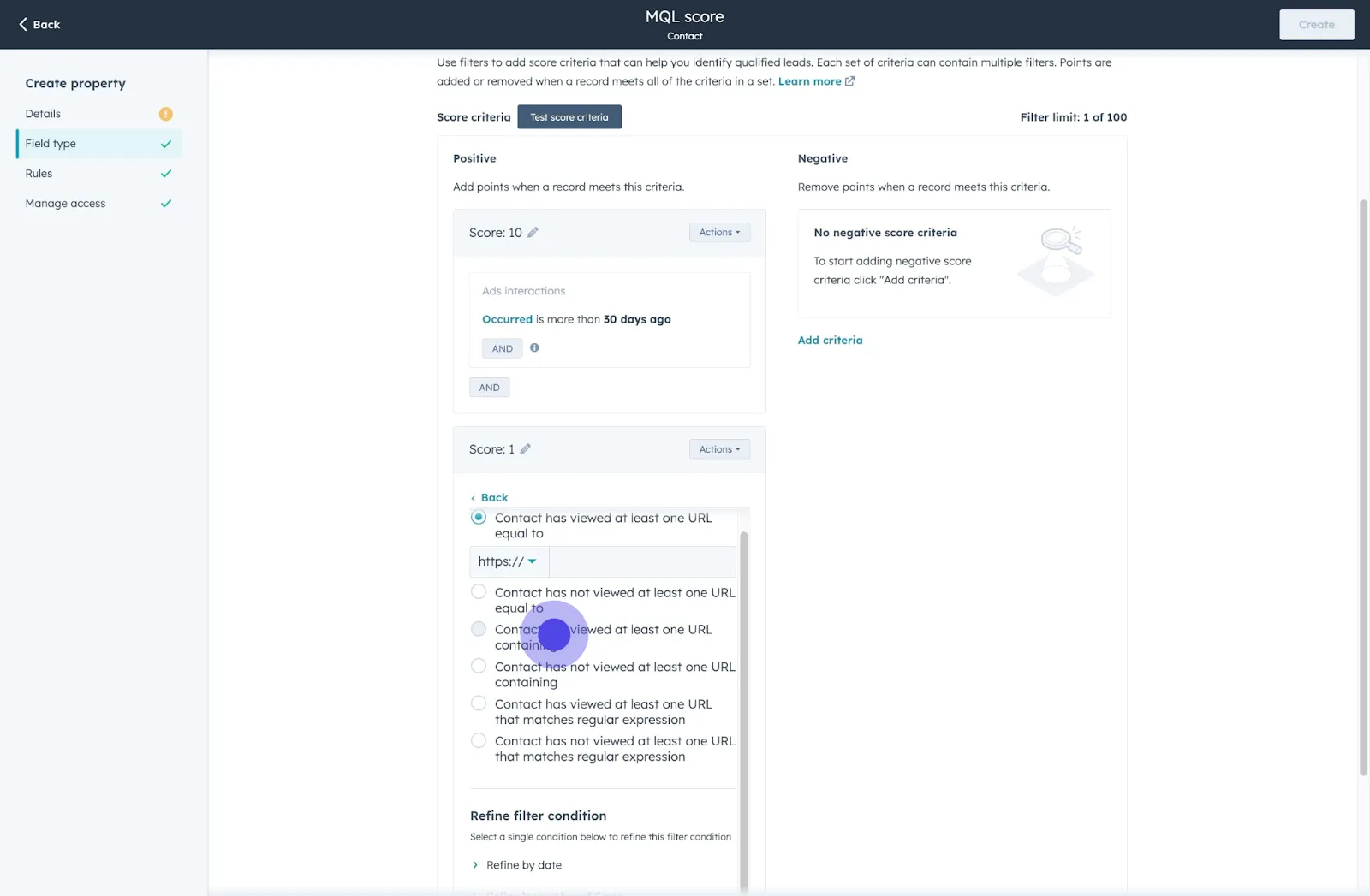
23. Confirm your settings by applying the filter.
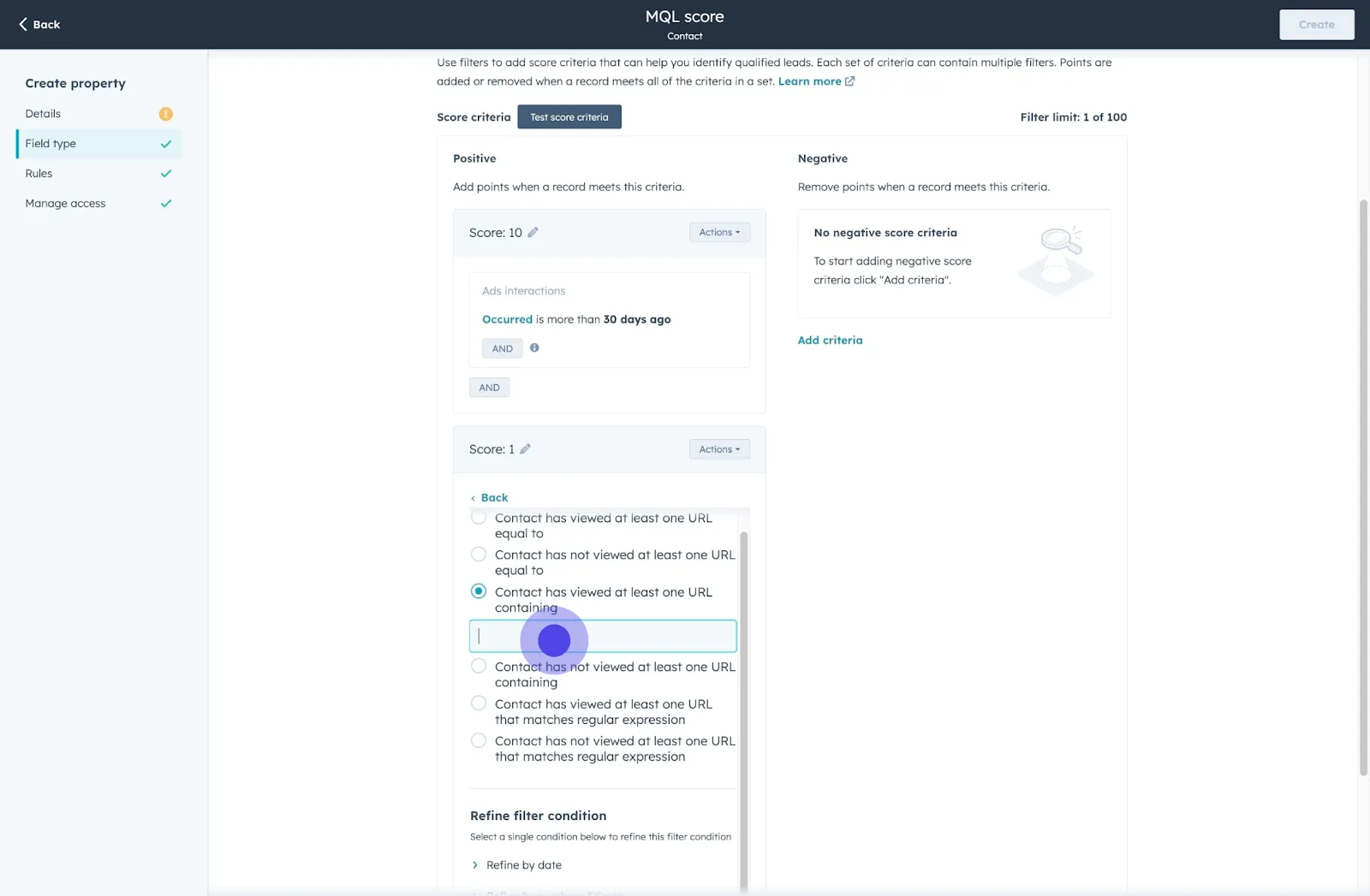
24. Edit if necessary, before adding another criterion.
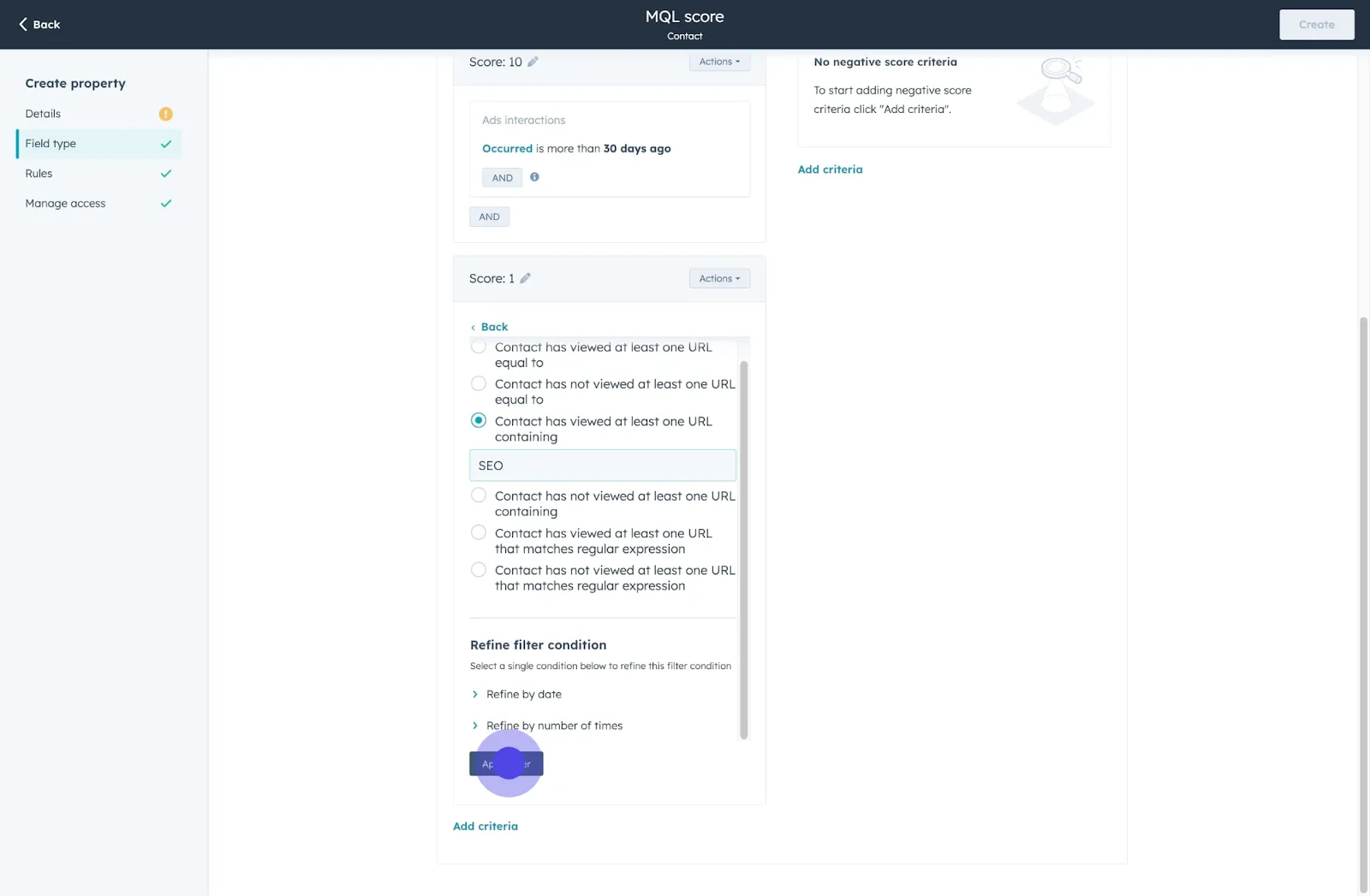
25. Once again, click to confirm your new score rule.
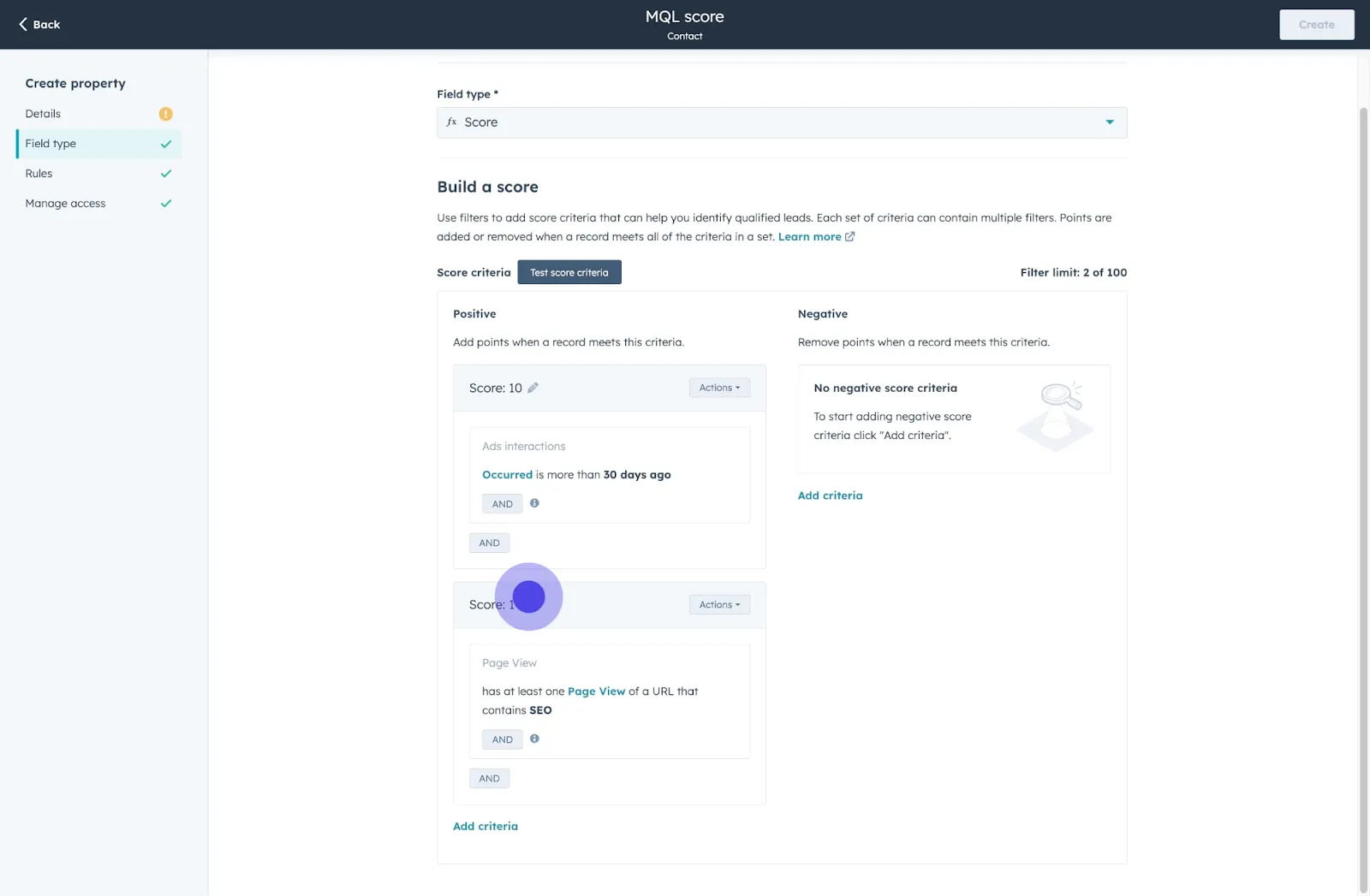
26. Set the rule to verify its application.
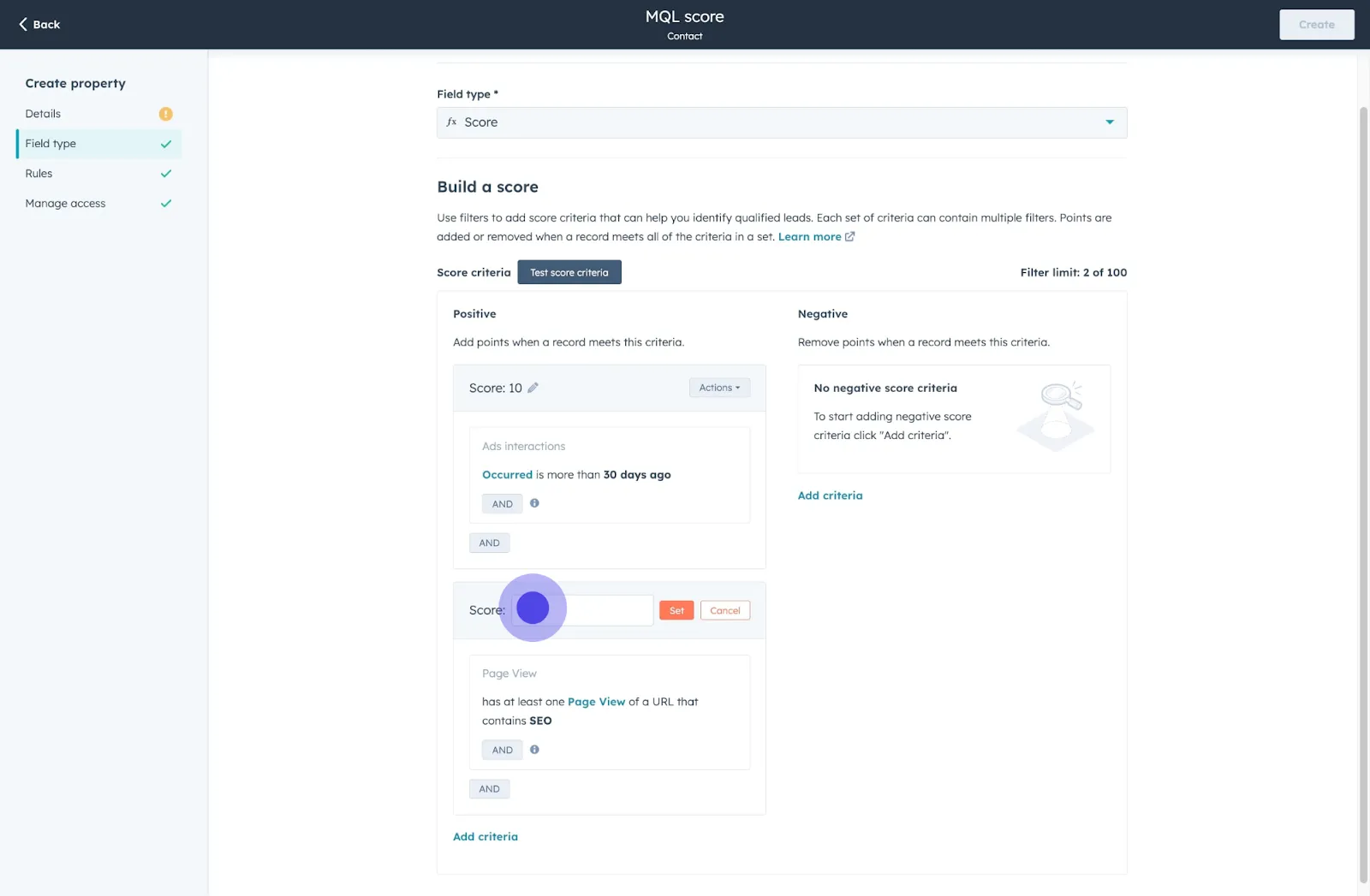
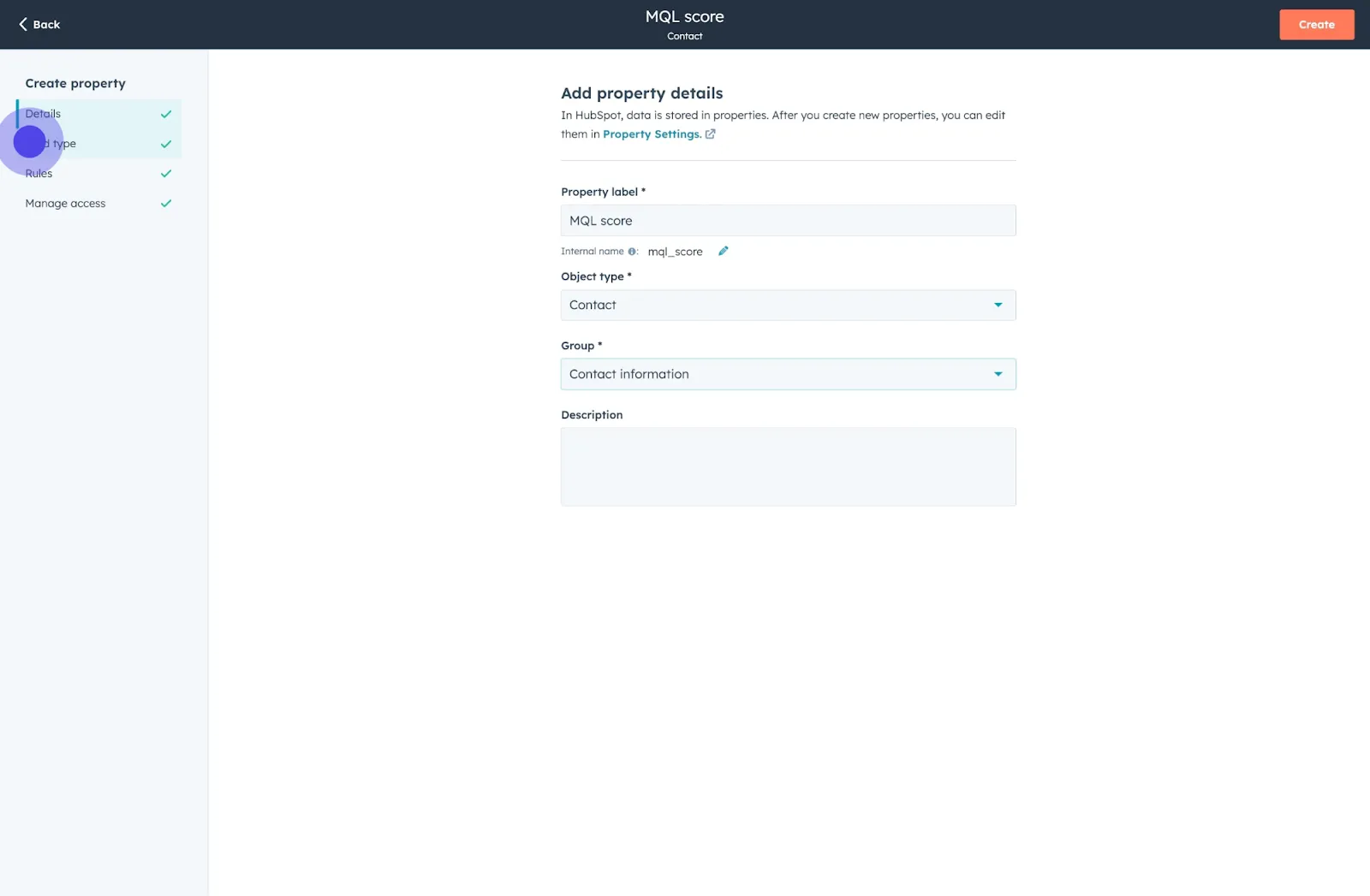
27. Proceed with 'Details' for further setup.
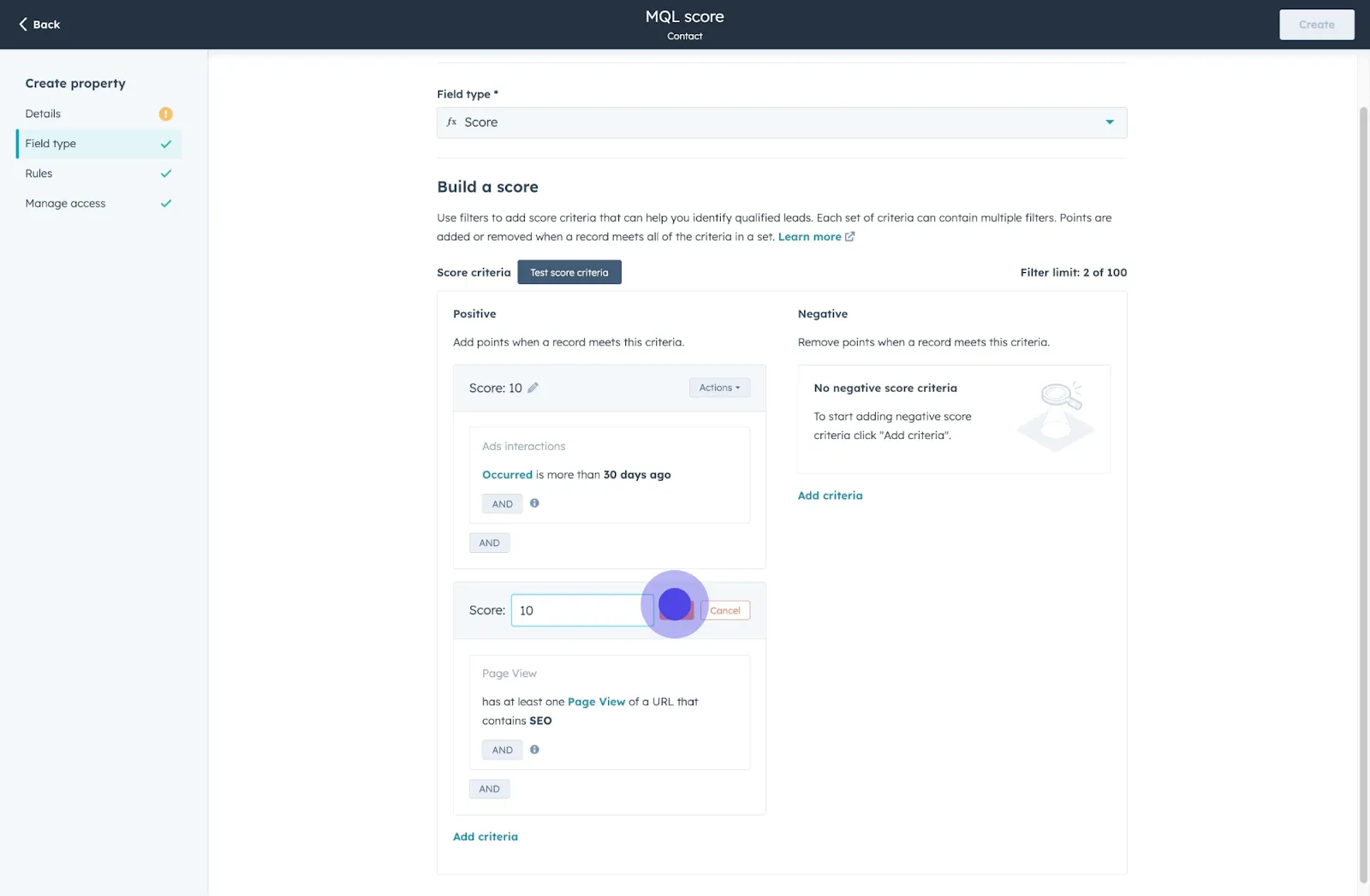
28. Select a group where this rule should apply.
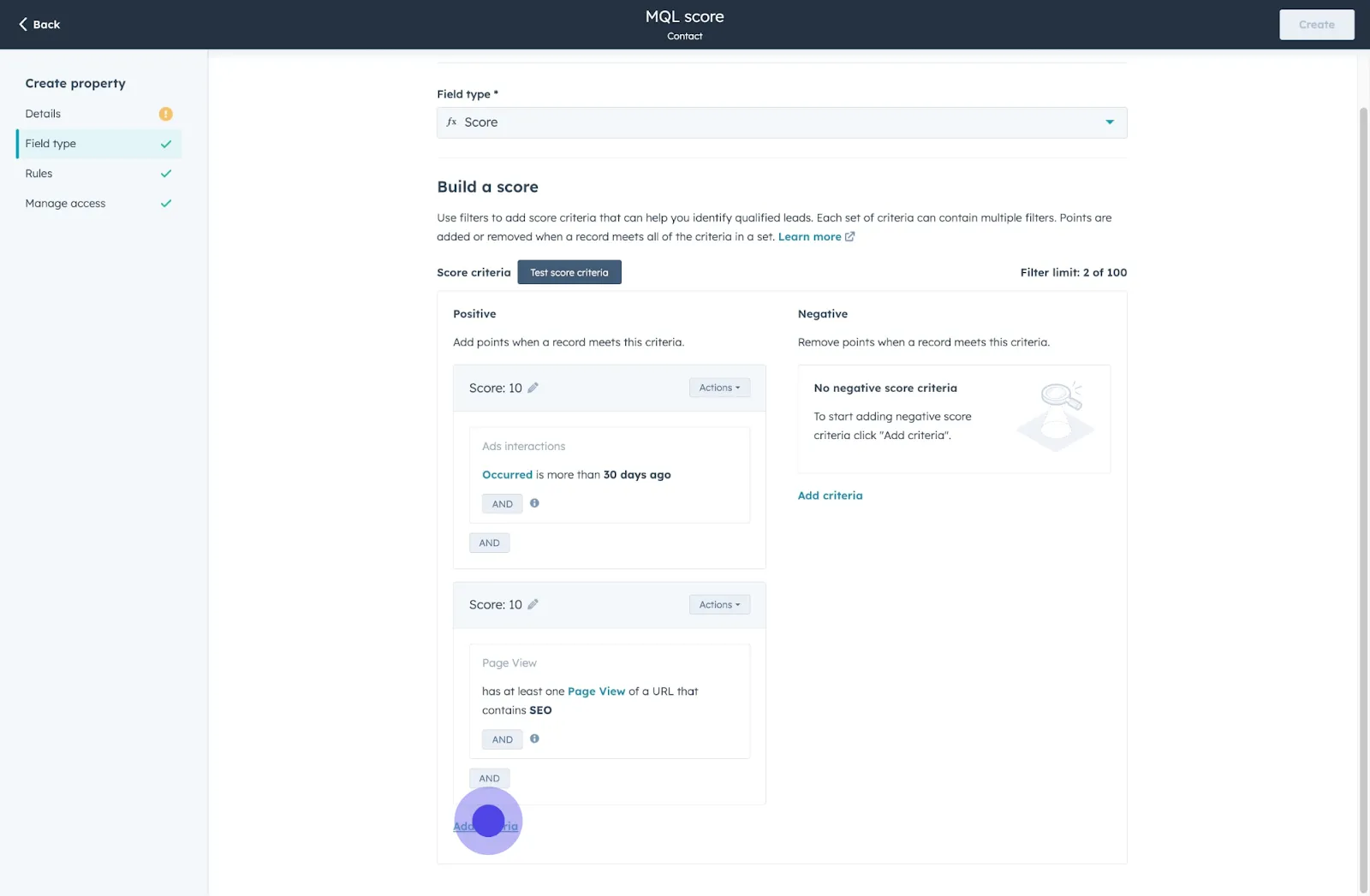
29. Make 'Contact information' part of your selected group.
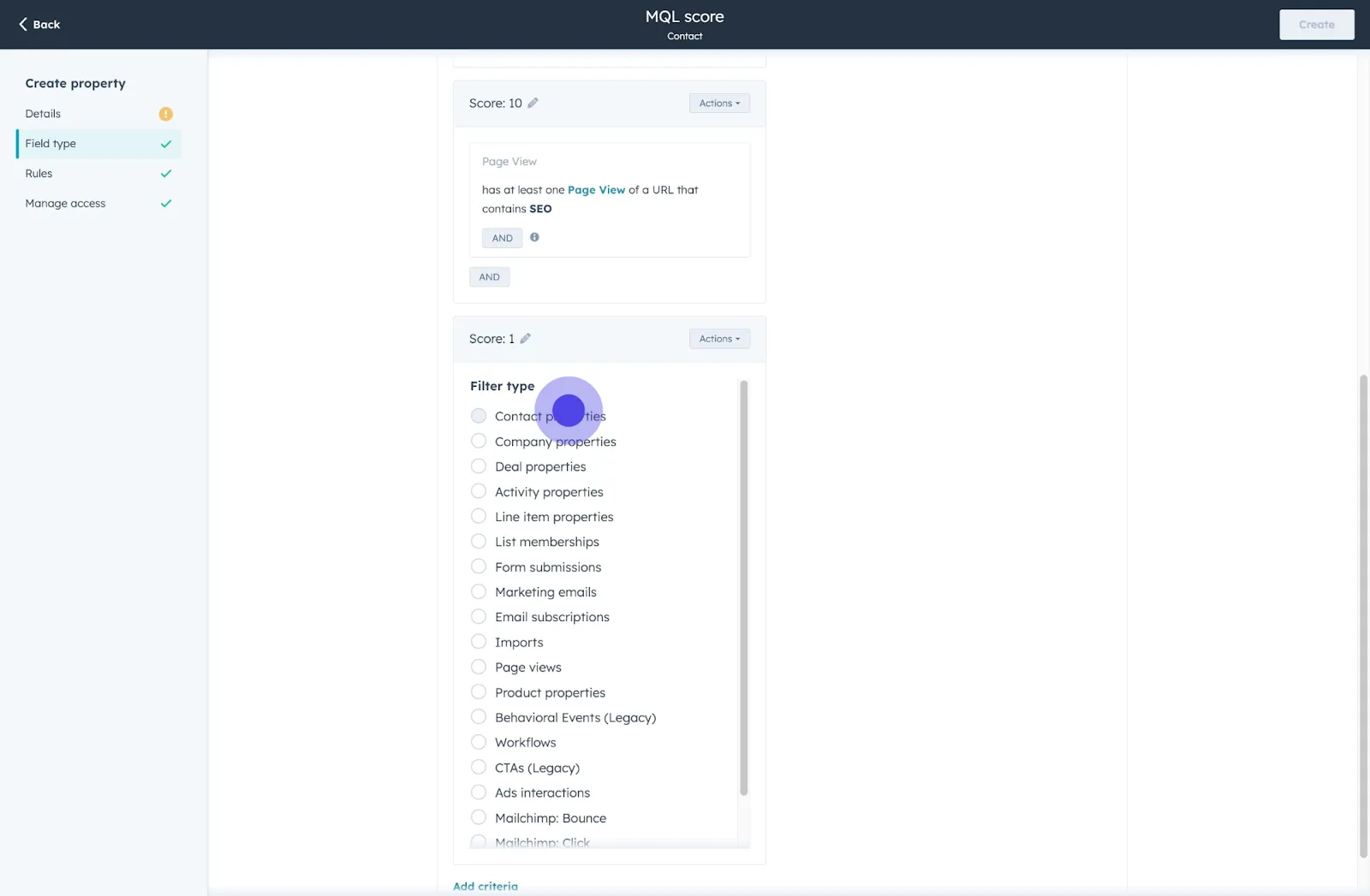
30. For sophisticated properties, proceed by clicking once more on 'Field type'.
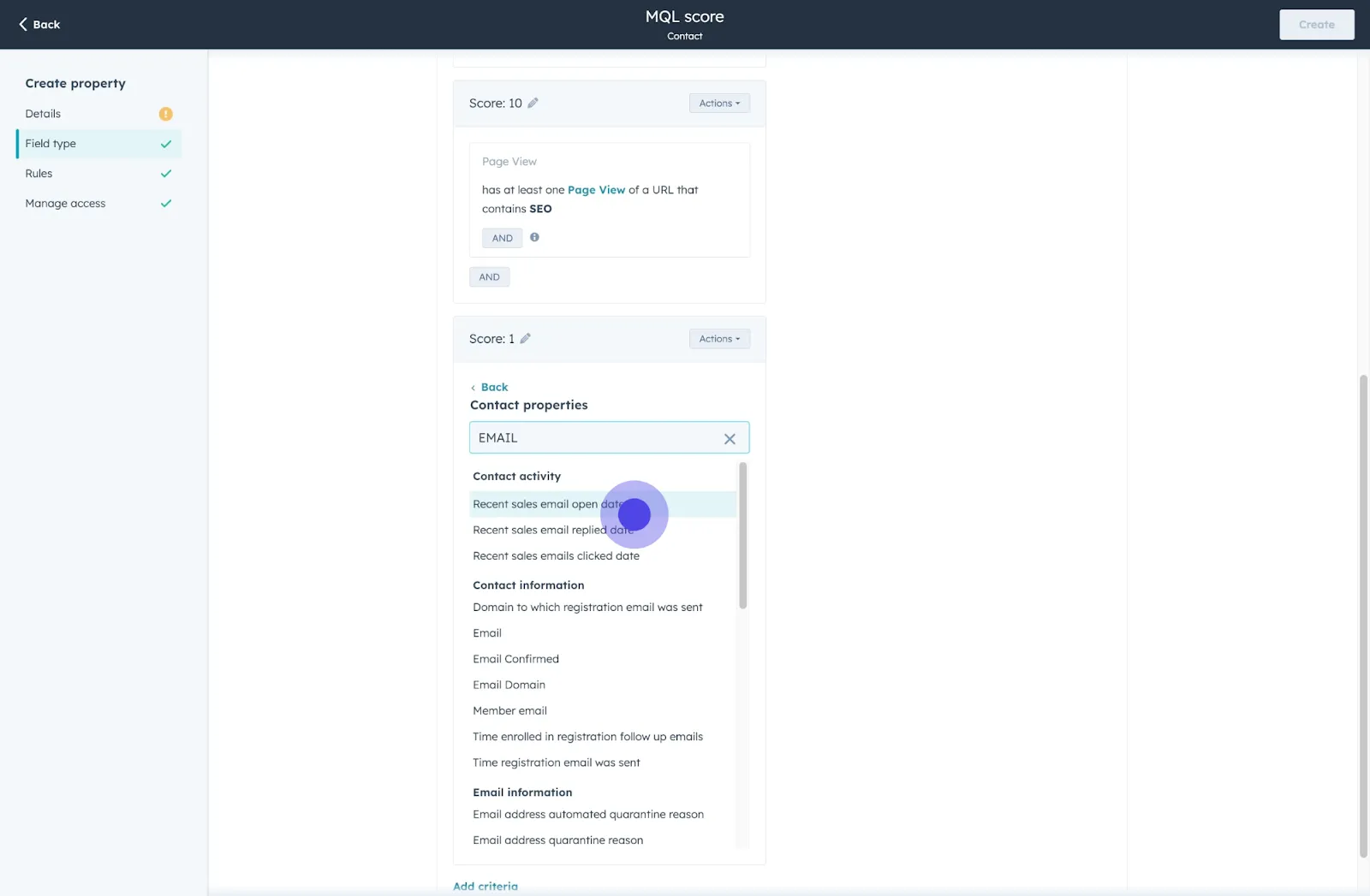
31. Click on "is less than".
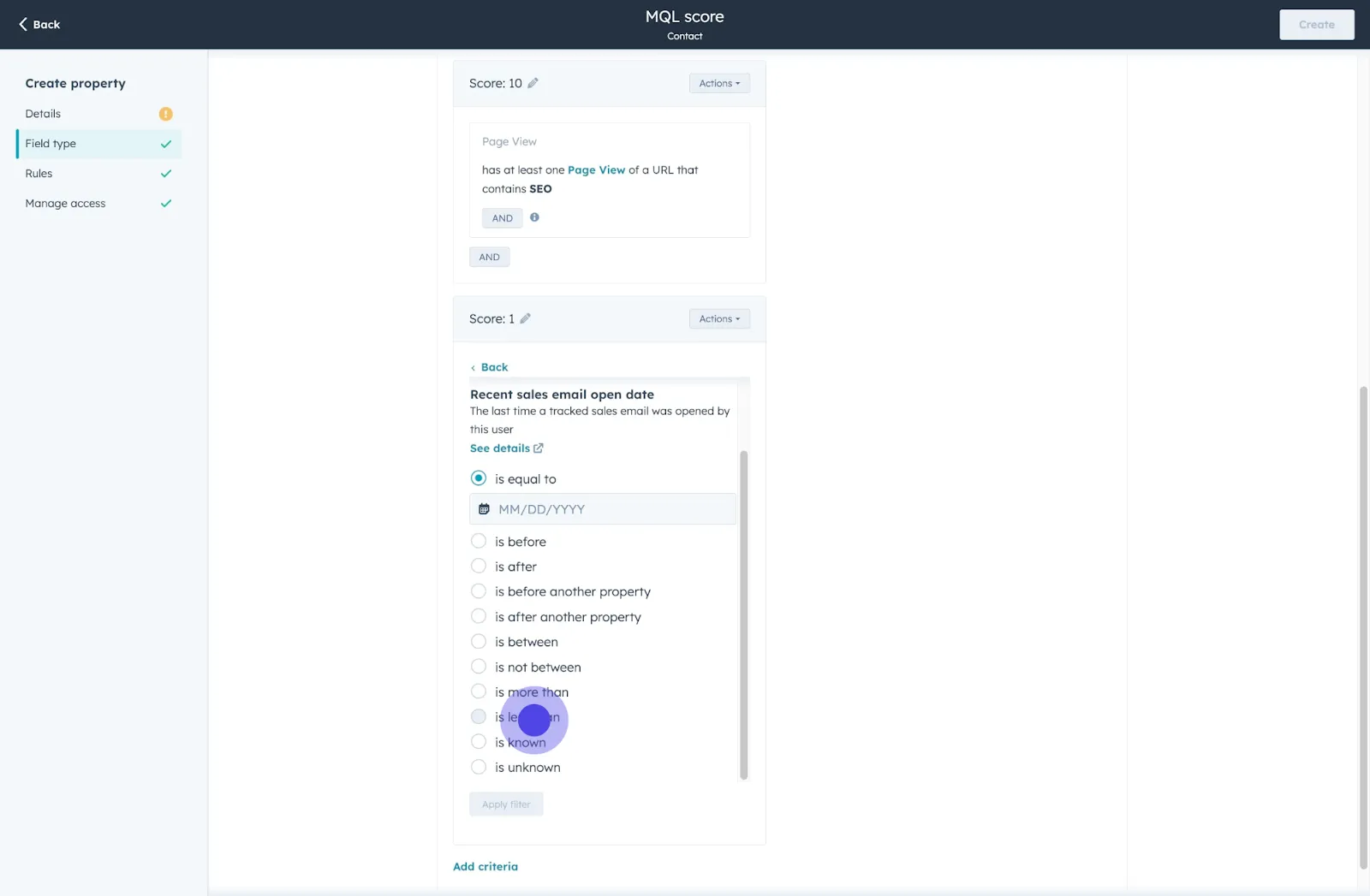
32. Click to confirm.
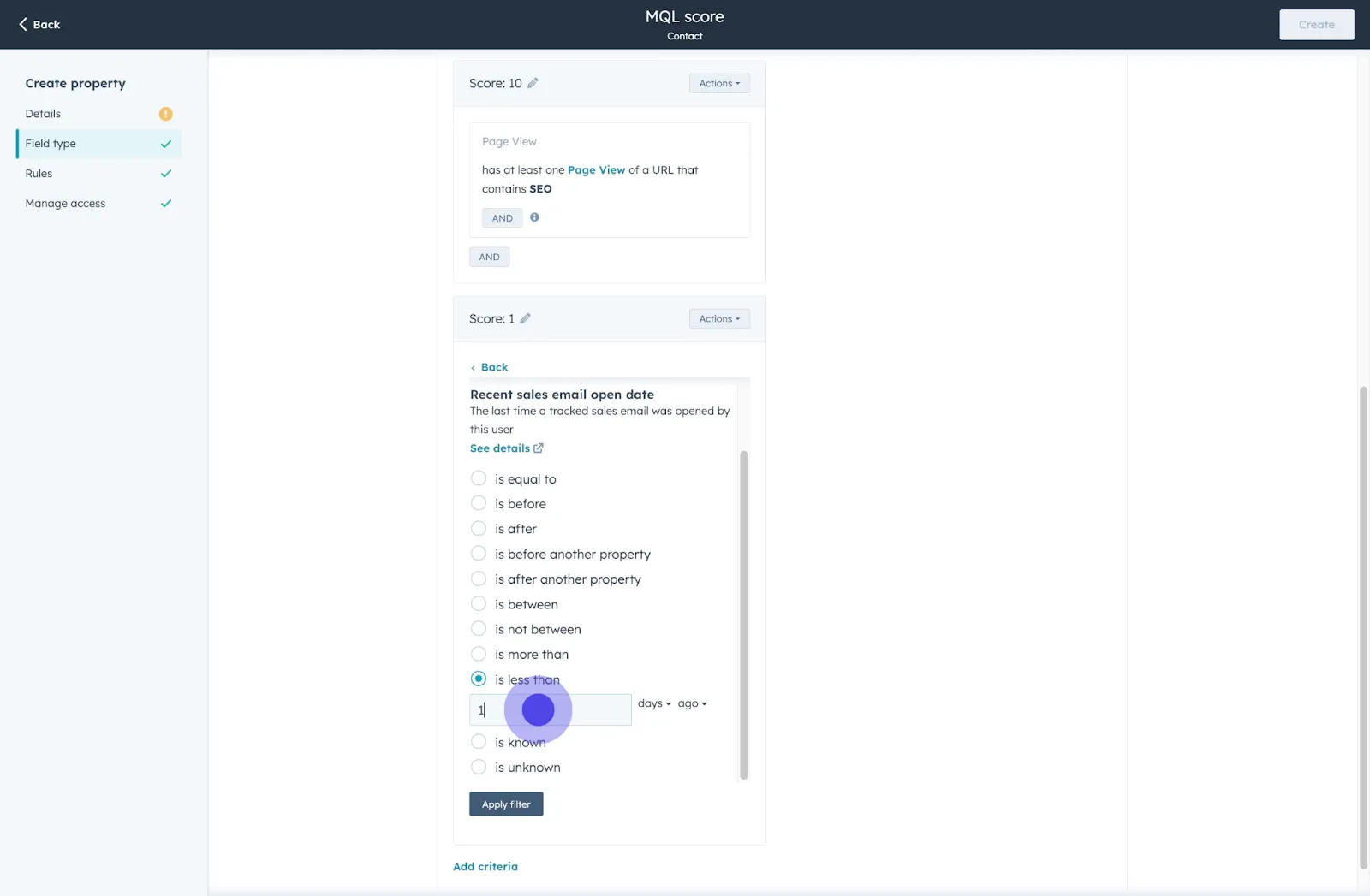
33. Click on "Apply filter".
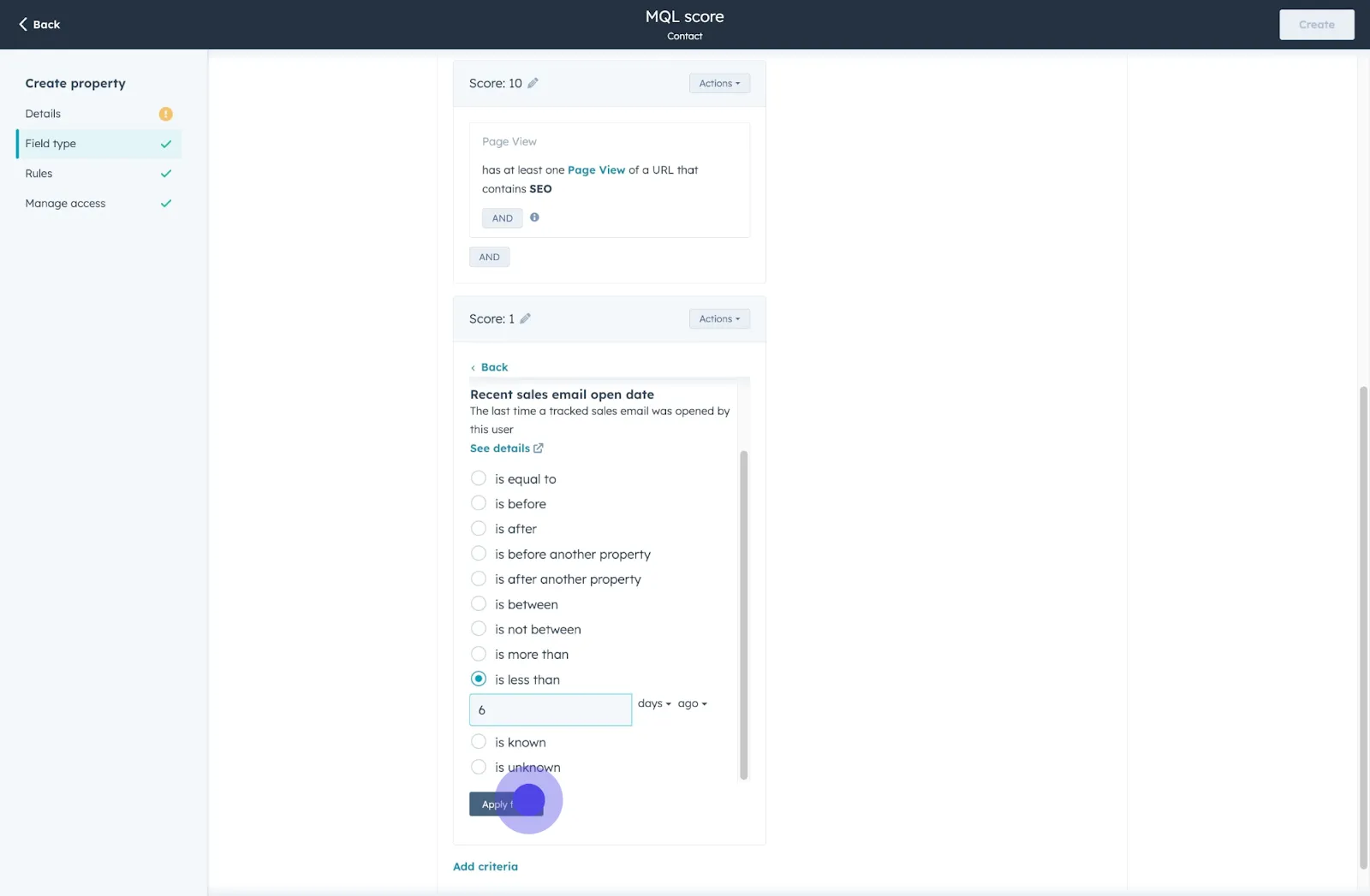
34. Click here to proceed.
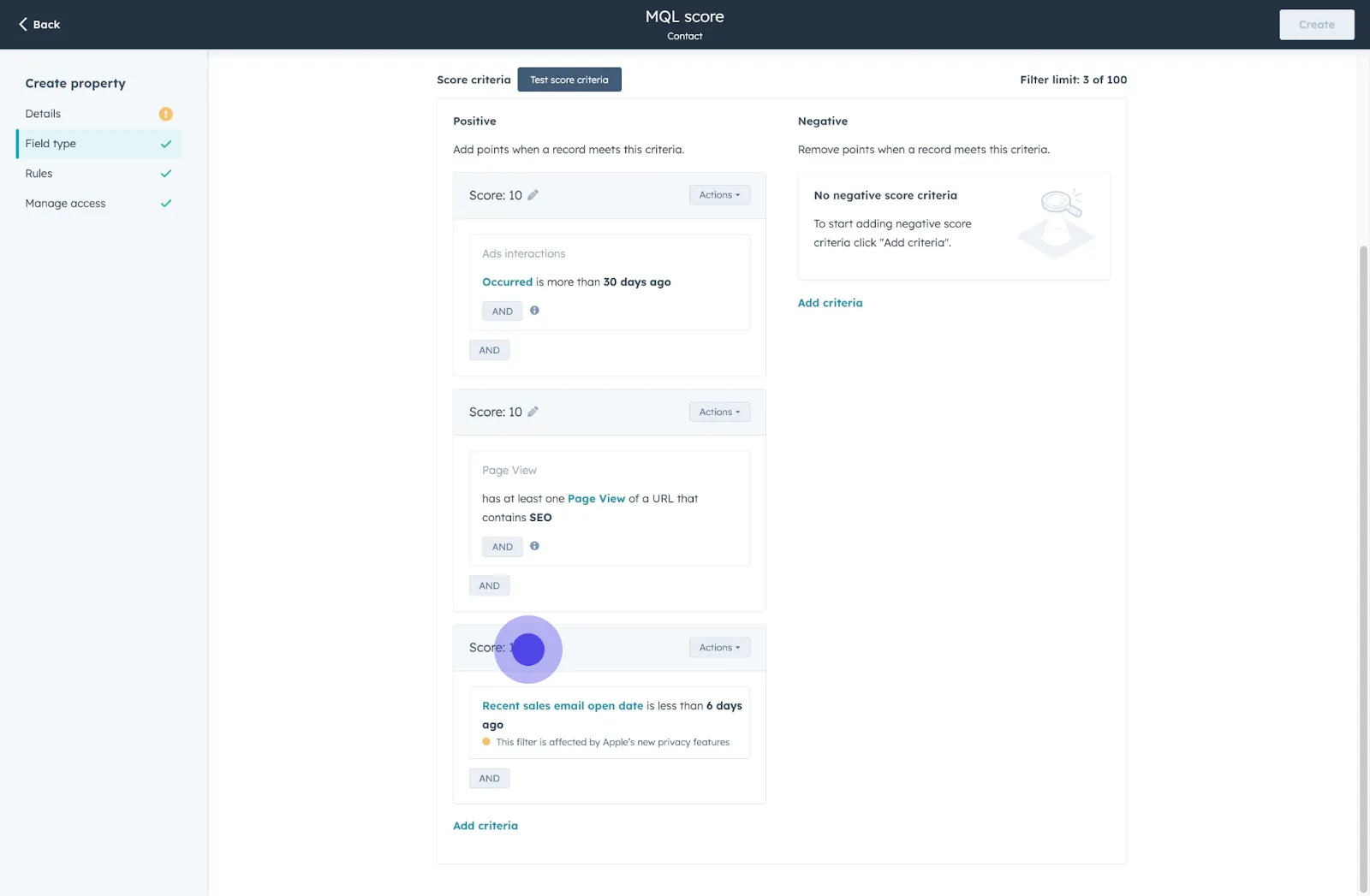
35. Click here to save changes.
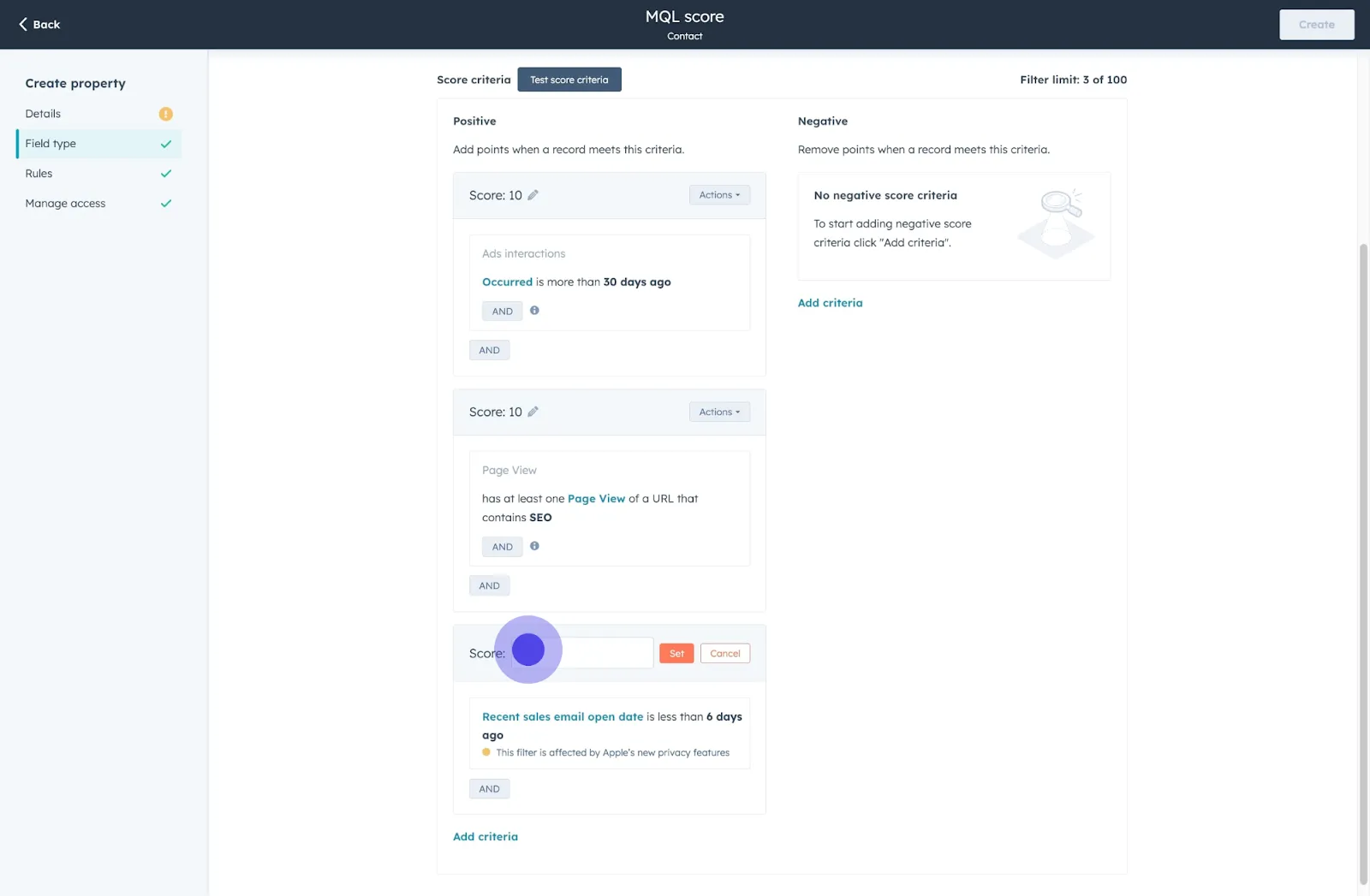
36. Afterwards, click on "Set".
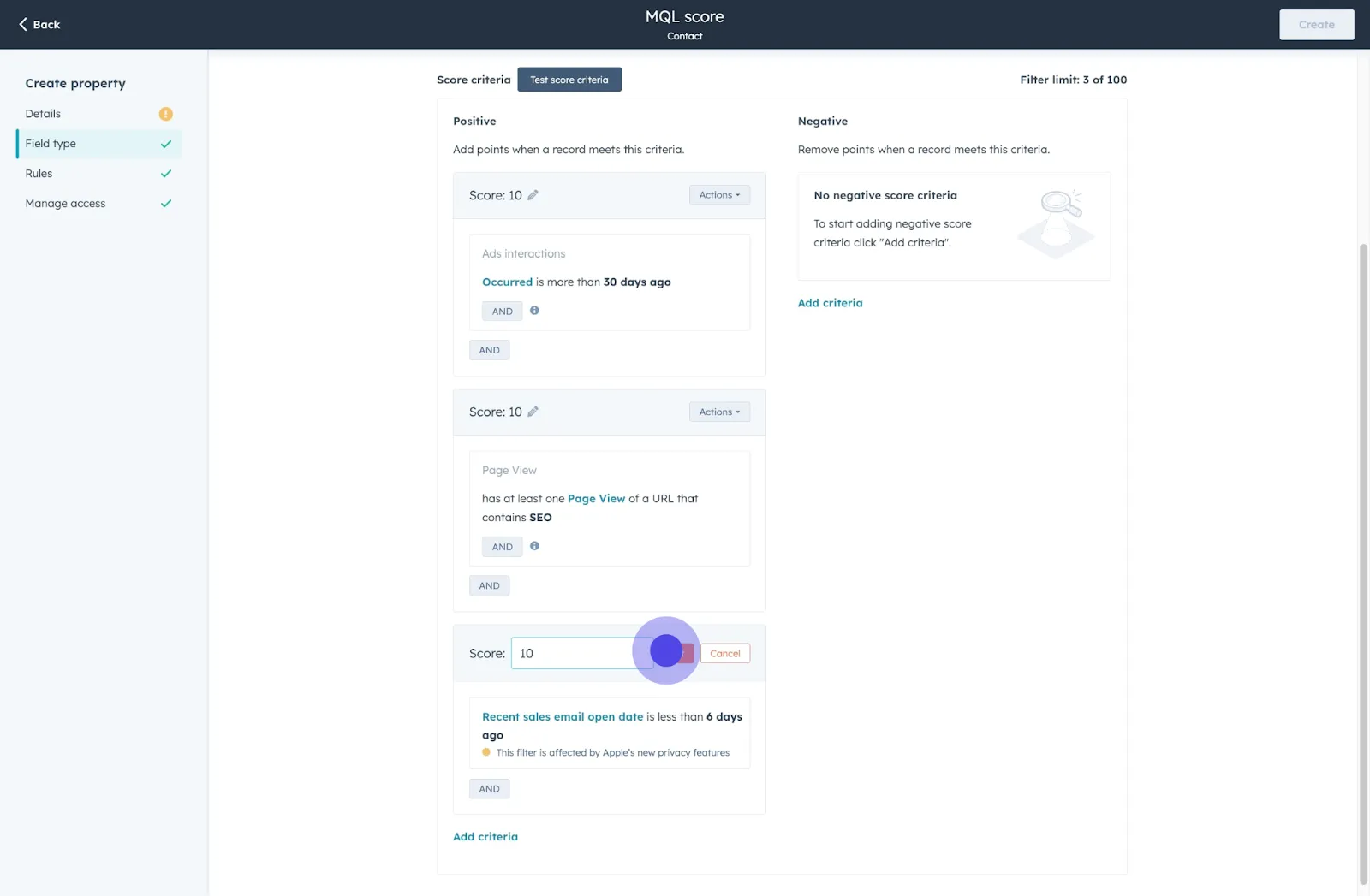
37. Following that, click on "Details".
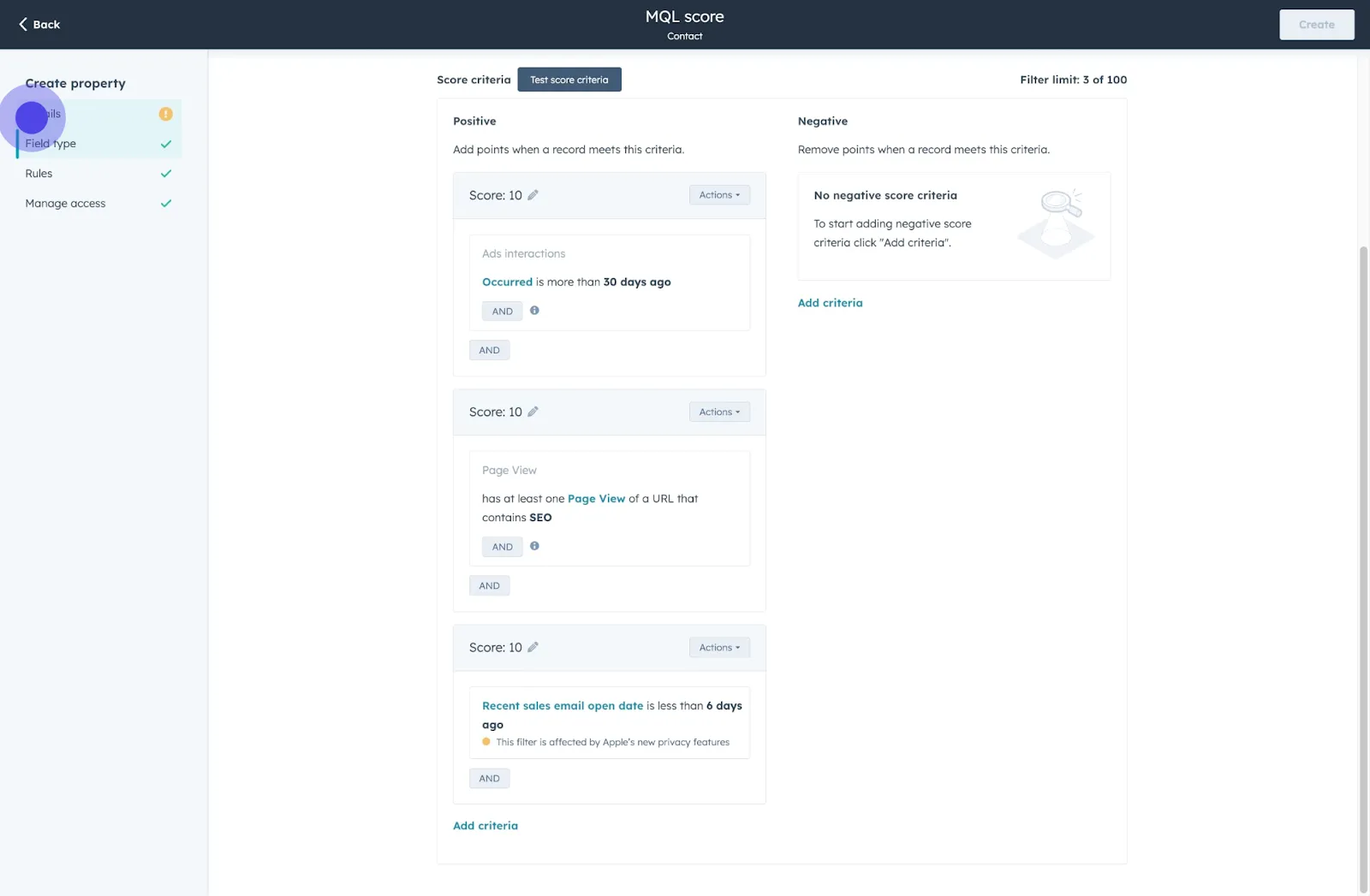
38. Click on "Select group".
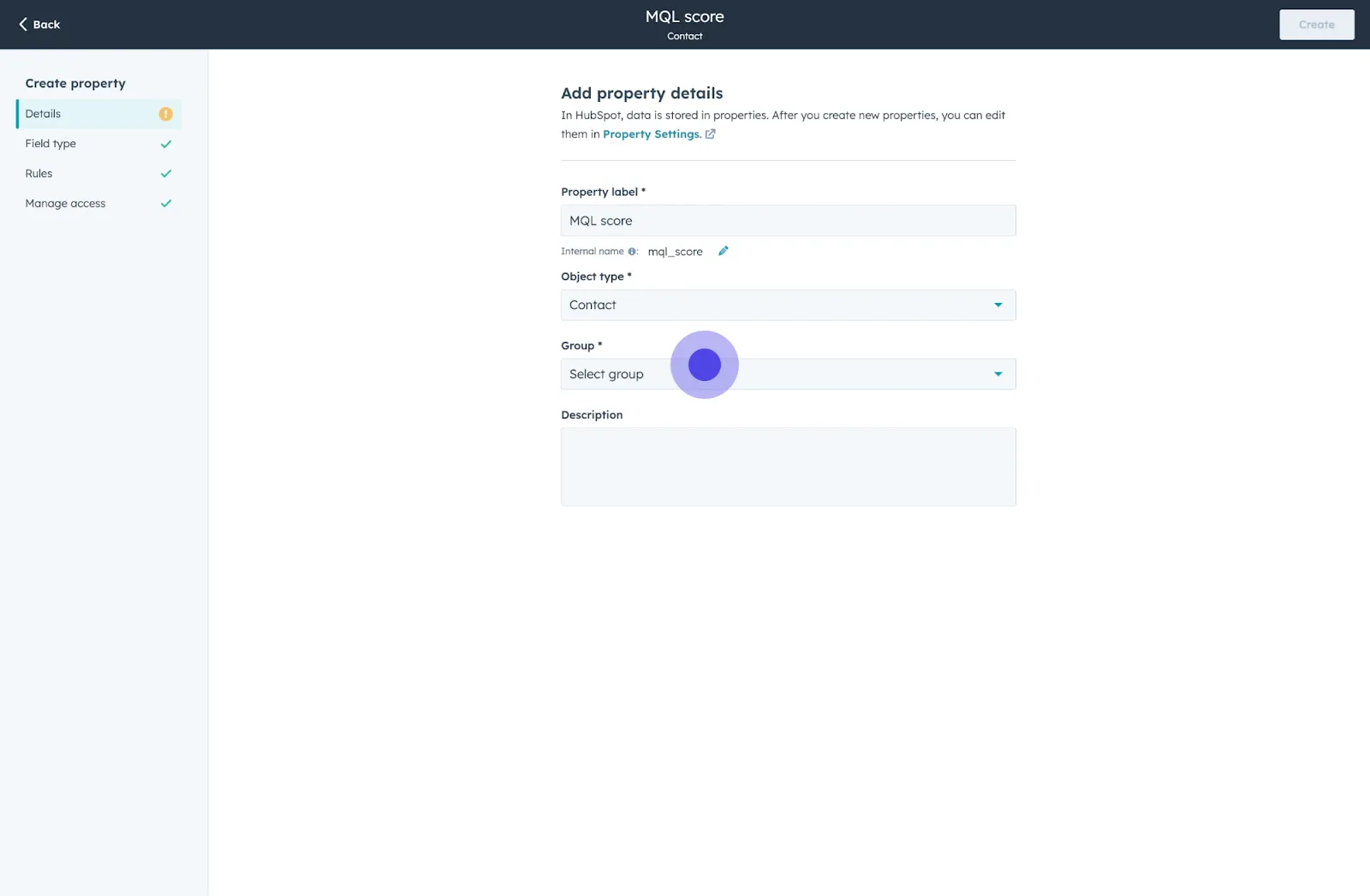
39. Afterwards, click on "Field type".
40. Click on "Create".
Conclusion
Setting up lead scoring in HubSpot can greatly enhance your marketing strategy. It helps you identify which leads are most likely to convert.
Incorporating lead scoring helps you prioritize your follow-up efforts. It turns your marketing qualified leads (MQLs) into sales opportunities more effectively.
Keep refining your lead scoring system as you gather more data. This ensures you stay aligned with your goals and continue to engage the right audience.
Book an introductory call to explore how TripleDart can support your SaaS marketing goals.
Frequently asked Questions
.svg)
To configure a lead scoring model, start by defining your scoring criteria. This includes identifying key engagement signals like email opens or form submissions. Next, set point values for each criterion based on its importance to your sales goals. Finally, test the model by reviewing the scores against actual conversion rates.
Yes, HubSpot allows for predictive lead scoring. This system uses historical data to analyze past leads’ interactions and behaviors. It identifies patterns that lead to successful conversions, helping you focus on high-quality leads who are more likely to engage.
You can find and manage lead scoring criteria in the HubSpot CRM. Navigate to your dashboard and select "Lead Scoring" under the "Sales" section. Here, you can add, edit, or remove scoring criteria, making it easy to adjust your approach as needed.
Effective lead scoring begins with a clear understanding of your target audience. Ensure that your criteria reflect behaviors and characteristics that align with successful conversions. Regularly review and adjust your scoring model based on performance data to maintain accuracy and relevance.
Creating a custom lead scoring template involves accessing the "Lead Scoring" settings in your HubSpot account. You can then define unique criteria that fit your business. Use specific engagement metrics that align with your products and audience to tailor the template for maximum effectiveness.


