

.png)
Adding dynamic URL parameters to your Meta ads can greatly enhance your tracking and reporting.
This process allows you to automatically gather data about how users interact with your ads, giving you crucial insights to improve your marketing efforts.
Utilizing tools like SaveMyLeads can help you streamline this setup and ensure your data flows seamlessly into your CRM platforms.
By using dynamic URL parameters, you can effectively automate the collection of essential information. This enables you to tailor your marketing strategies based on user behavior and enhance the effectiveness of your campaigns.
Automation tools play a vital role in simplifying this process, making it easier to manage and analyze your ad performance.
Whether you're looking to understand traffic sources or optimize your campaigns, knowing how to implement these parameters is key.
Step-by-Step Tutorial on How to Add Dynamic URL Parameters to Meta Ads
1. Start by selecting a campaign to add URL parameters in your Meta Ads Manager setup.
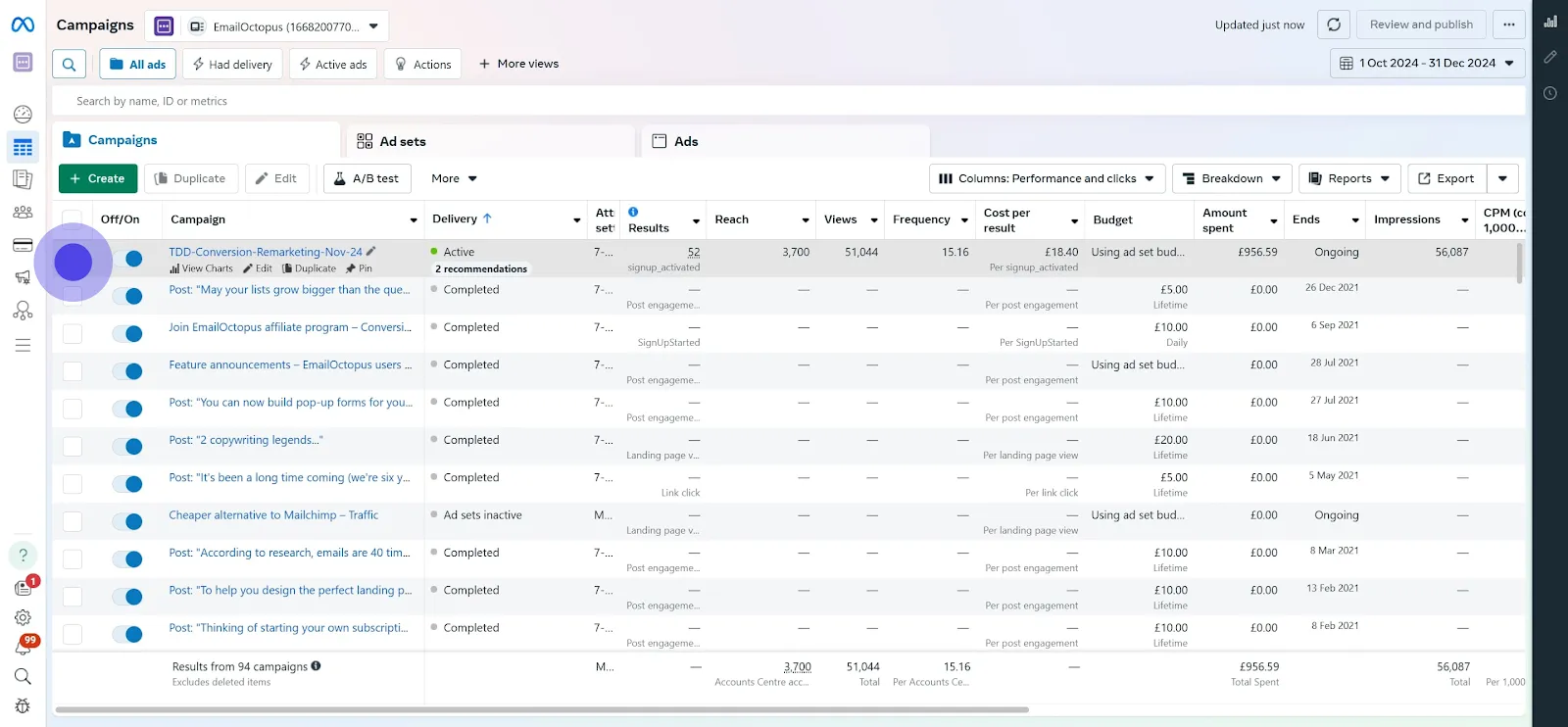
2. Next, access the ads section.
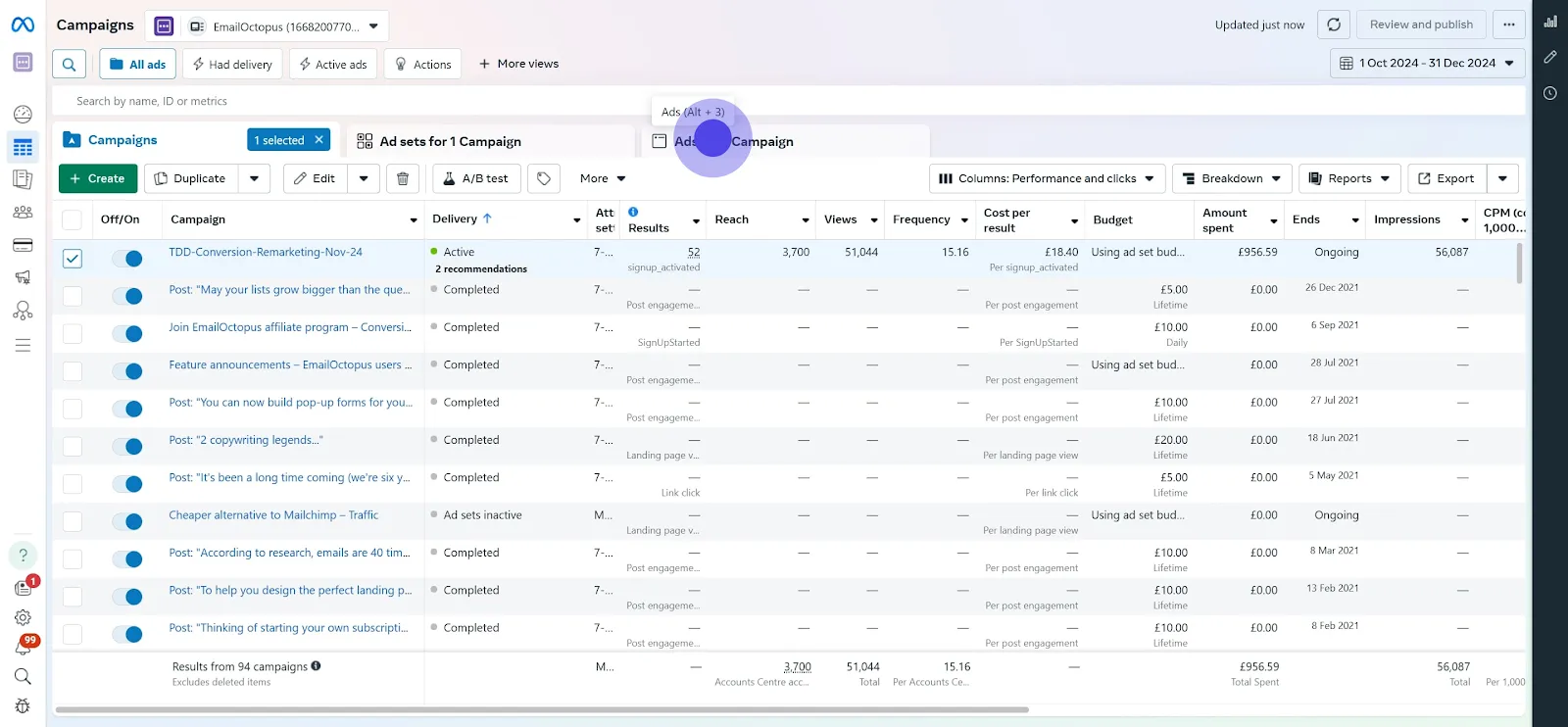
3. Then, choose the specific ad you wish to modify.
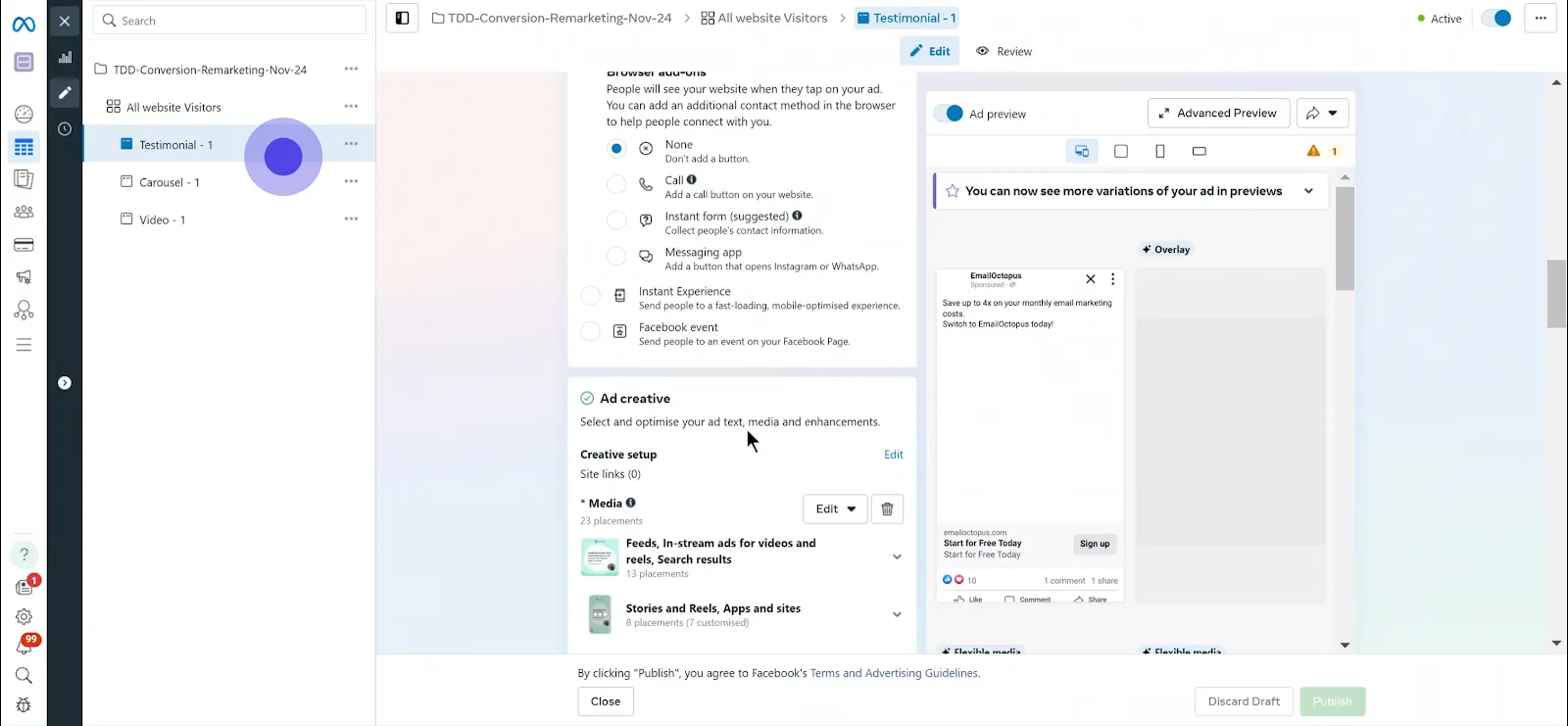
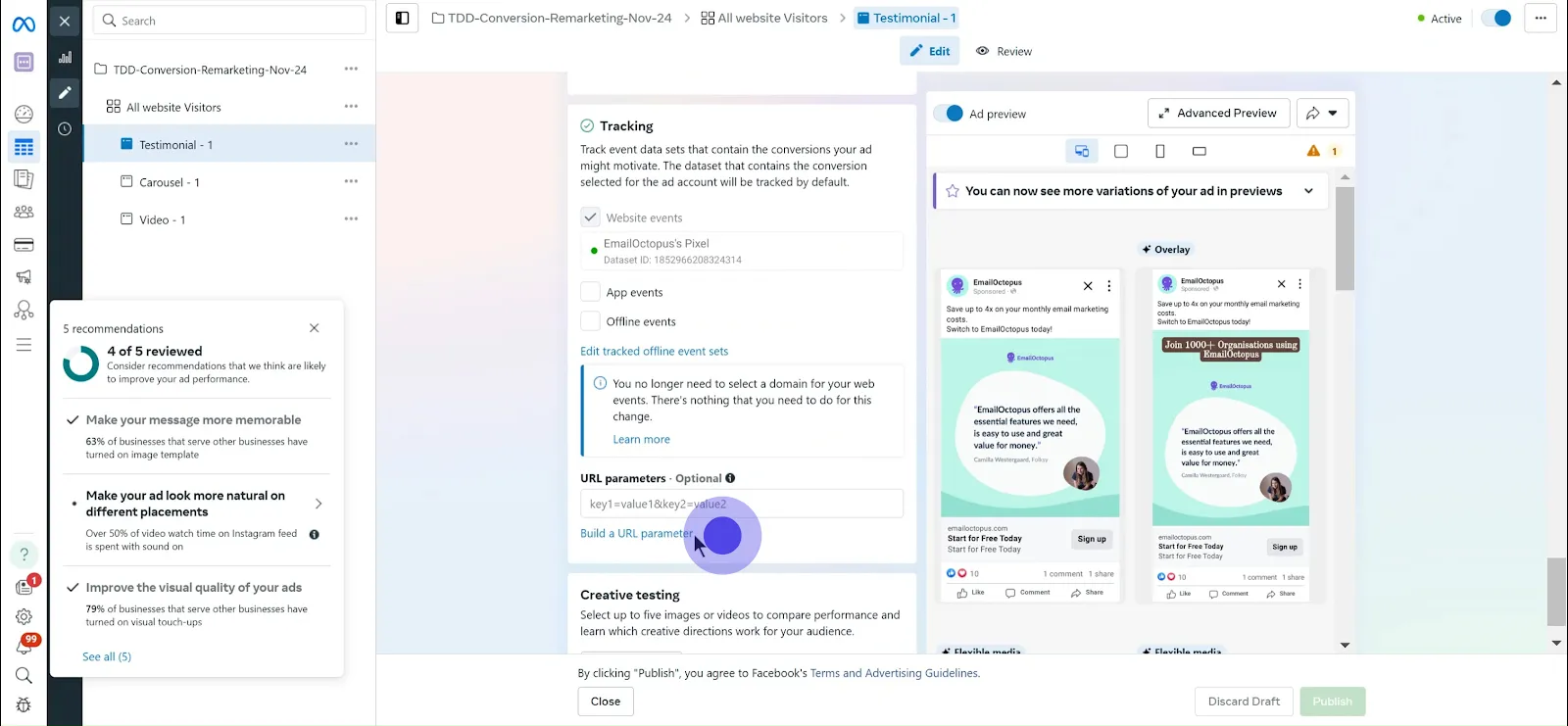
4. Now, scroll to locate the URL parameters section within the ad settings.
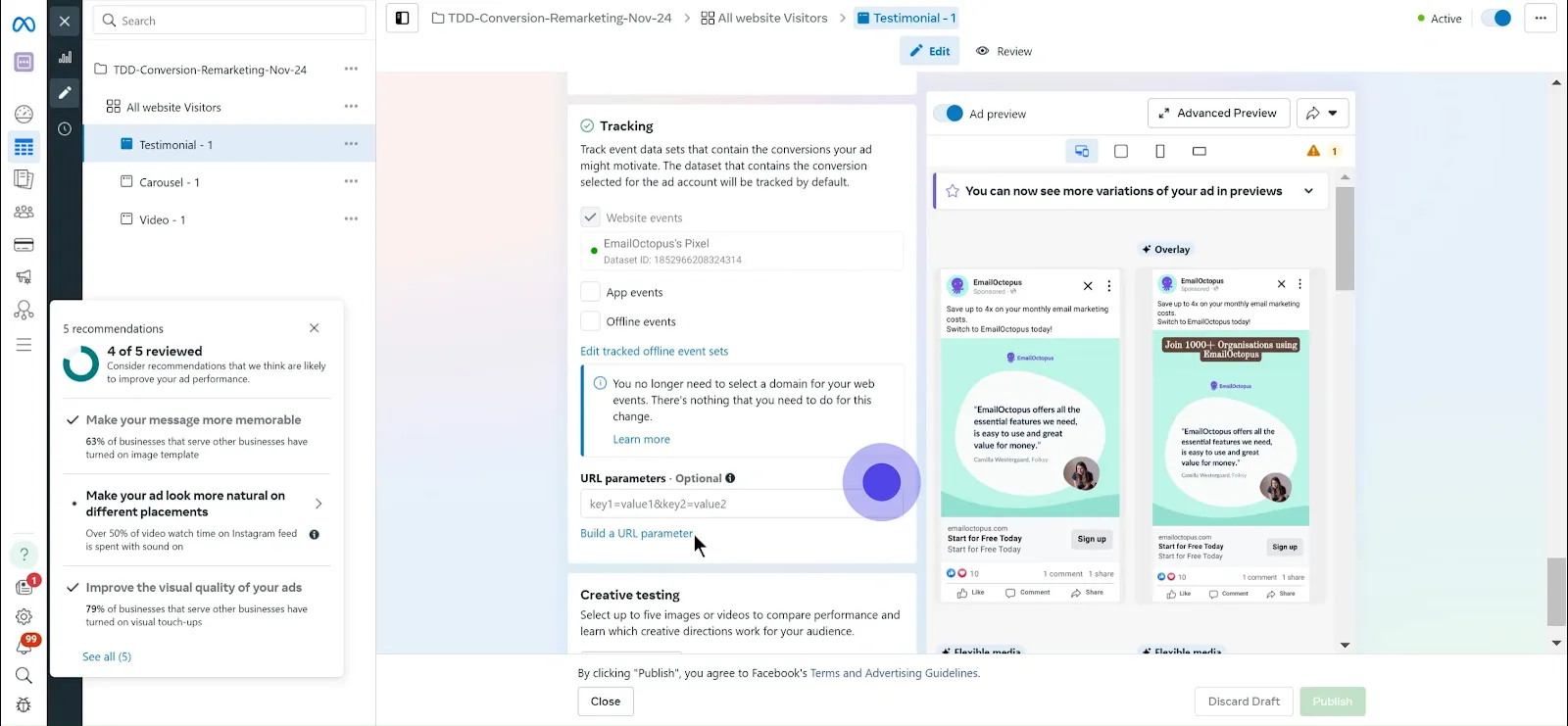
5. Click to start building your URL parameter for better tracking.
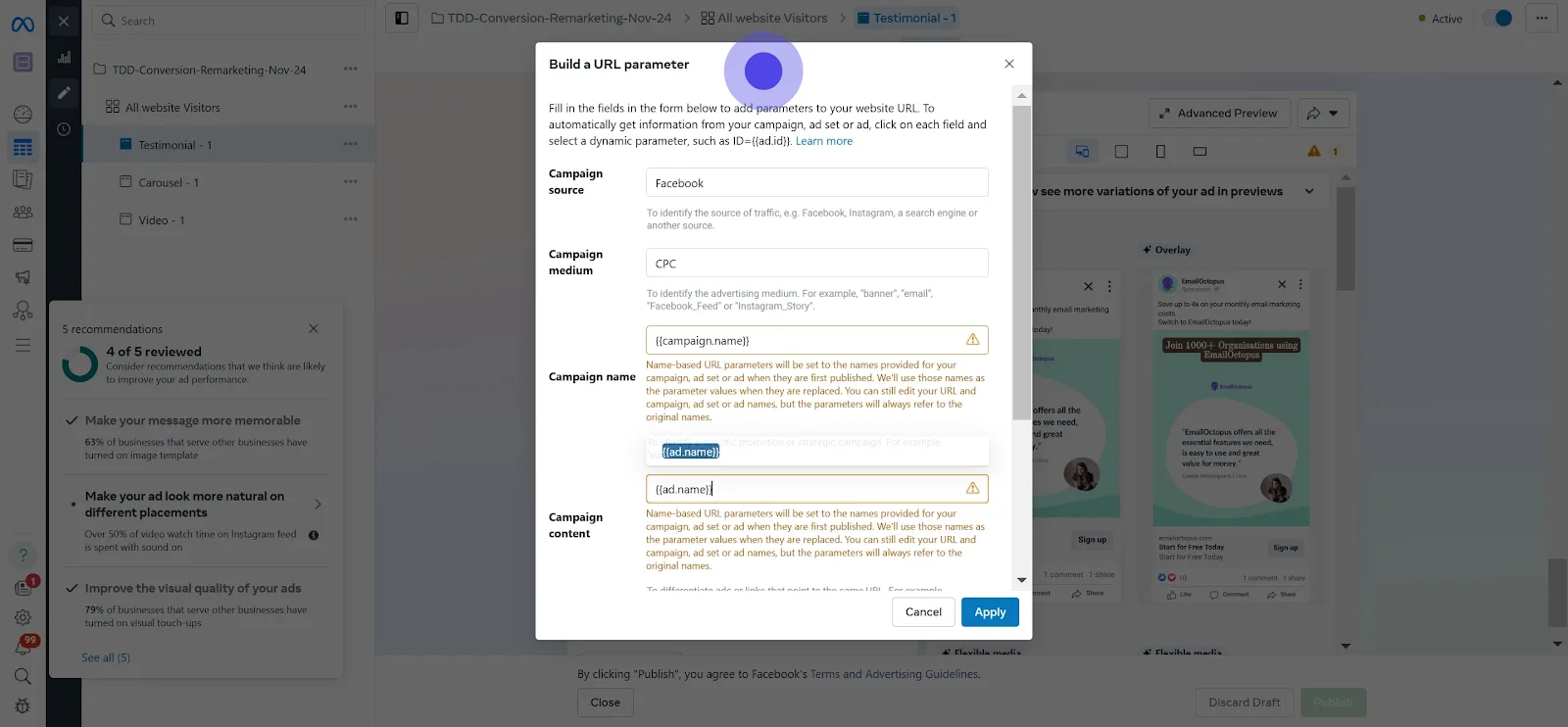
6. Enter all necessary details for your URL parameter to enhance tracking accuracy.
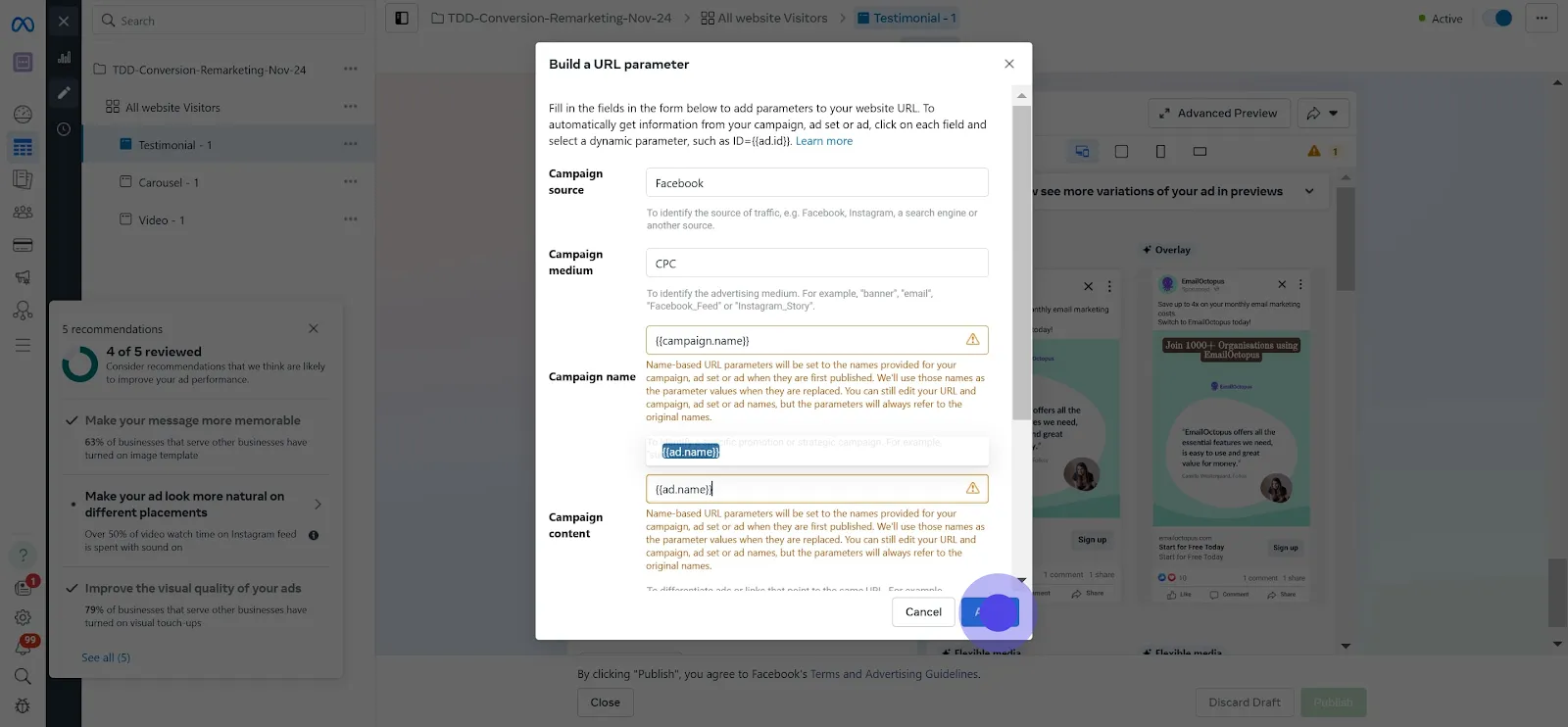
7. Finally, click 'apply' to save all your new settings and changes.
Conclusion
Using dynamic URL parameters in your Meta ads can greatly enhance your tracking and analytics. This allows you to understand user behavior and optimize your campaigns effectively.
By incorporating these steps, you can ensure that your ads are not just seen, but also effectively analyzed for better performance.
Frequently asked Questions
.svg)
To add UTM parameters, first go to Ads Manager. When creating an ad, look for the option to add URL parameters. You can include parameters like utm_source, utm_medium, and utm_campaign directly in the URL box. This helps in tracking performance in tools like Google Analytics.
If your parameters aren’t working, check that you entered them correctly in Ads Manager. Ensure there are no typos. Additionally, verify that your tracking setup in your analytics platform is correct. Test the URL to see if data is captured in real-time.
Best practices include keeping URL parameters concise and relevant. Use clear naming conventions to ensure easy identification in analytics reports. Monitor your campaign performance regularly to see how these parameters impact your ROI and conversion rates.
To append parameters effectively, use a consistent format. Add your parameters directly to the end of your ad's destination URL. Ensure that each parameter is separated by an ampersand (&) to maintain clarity and structure for data collection in Google Analytics.
For example, if you’re running a spring sale, you might use the following URL: www.yoursite.com?utm_source=facebook&utm_medium=paid&utm_campaign=spring_sale. This setup will help you track referral traffic specifically from your spring sale ads in your analytics.


